How to Use DxO PureRaw 6 & Review
PHOTO DENOISING
software has become a crowded space. Every company now seems eager to stamp the word AI on the box, whether it helps the photographer or not. That makes it harder to know which tools are actually useful and which ones are mostly marketing.
I have tried my share of denoising plugins and raw processing tools over the years, but the one I keep coming back to is DxO PureRAW. It is the one that has stayed in my workflow since it was first launched in 2021. But DxO products have been in my workflow one way or another for over a decade now. Earlier this year, DxO released PureRAW 6, and knowing they release a new version each year, the burning question is not whether the software suddenly became something new. It is whether this update makes an already useful tool better in the ways that matter and is worth upgrading from a previous version.
Before going further, I should say this is not a sponsored review. I bought all of my DxO software myself. If you are not familiar with the company, DxO is a French software maker best known for its lens correction profiles (the first company to actually make lens profiles) and digital photography software. PhotoLab is their main editing and cataloging application. Around it sits a broader ecosystem that includes FilmPack, ViewPoint, Nik Collection, and PureRAW. I have used most of them at one point or another, but PureRAW is still the one I rely on the most, especially for wildlife images, high-ISO work, and older camera files that need a little help before the edit begins.
That last point matters. PureRAW can be surprisingly good at giving new life to files from cameras such as my beloved Canon 5D Mark II. That camera still has a look I love, especially in its colours and tonal rendering, but it was never famous for clean files once the ISO climbed. Tools like PureRAW change the equation. They let you keep more of what made those cameras interesting in the first place while making the files easier to work with in a modern workflow.
So this is what I wanted to look at with PureRAW 6: what is actually new, how it compares with version 5, and how it fits into my Lightroom Classic workflow. However, PureRaw is also a standalone app so if like many if you’ve been looking at alternative to Lightroom and have already found it, you can still utilize the benefits of PureRaw in a similar way I’ll show you now.
What PureRAW is actually for
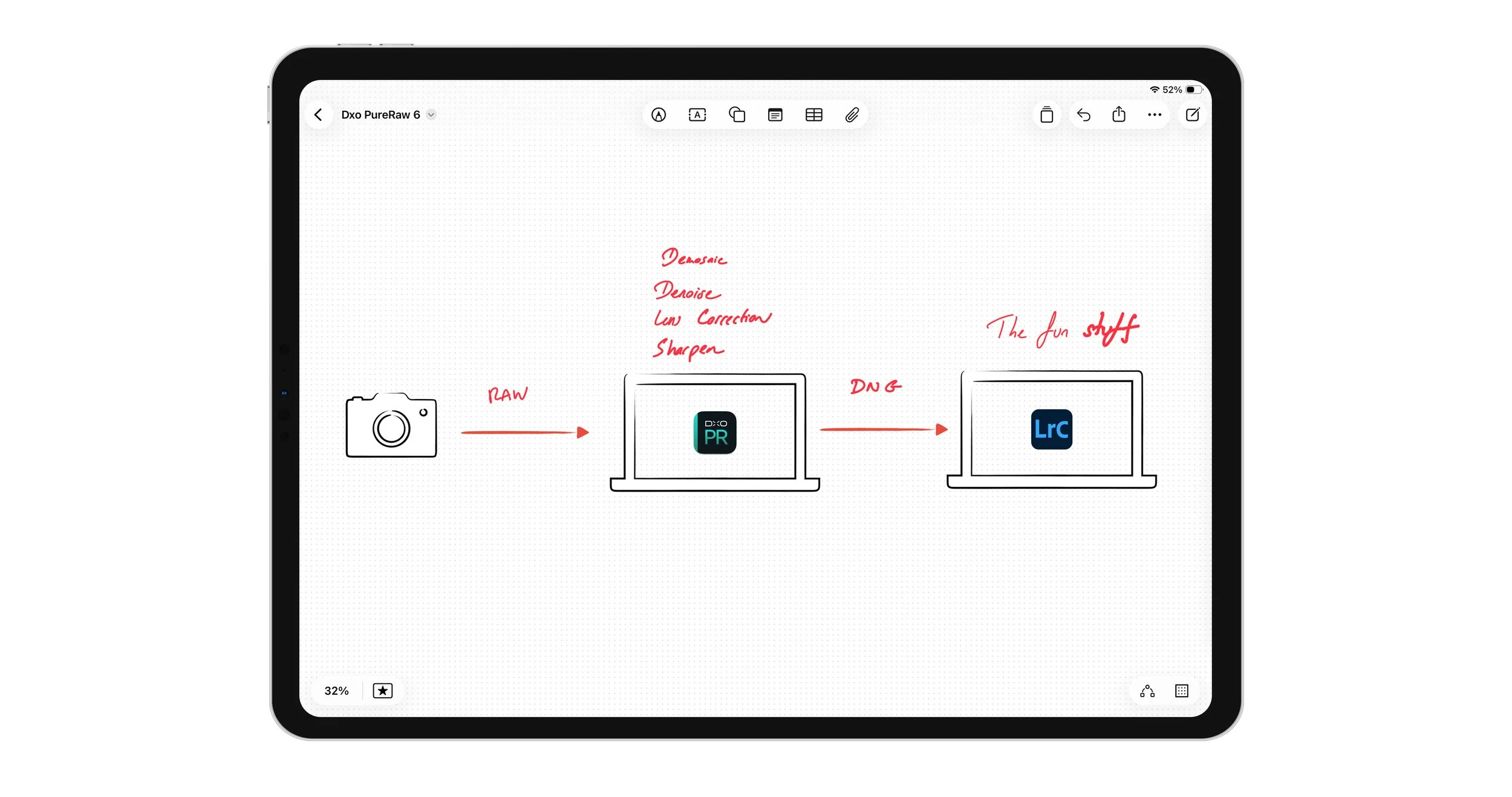
PureRAW is not editing software like Lightroom, Capture One, or PhotoLab. It does not allow users to change exposure, white balance, etc. PureRaw sits before your camera and your favourite photo editing software.
A word about RAW
Let’s very quickly go over what a RAW file is. A RAW file cannot be viewed the same way a JPEG image can. It is the camera’s unprocessed capture of light and colour information. Because most camera sensors record only one colour value per pixel through a colour filter array, the software has to demosaic the file by estimating the missing colours for each pixel to build the full image. That is why different software can render the same RAW file differently: each program uses its own way of interpreting colour, detail, noise, sharpening, and lens corrections, so the final image can vary even before you start editing.
Demosaic, Denoise, Correct, Sharpen
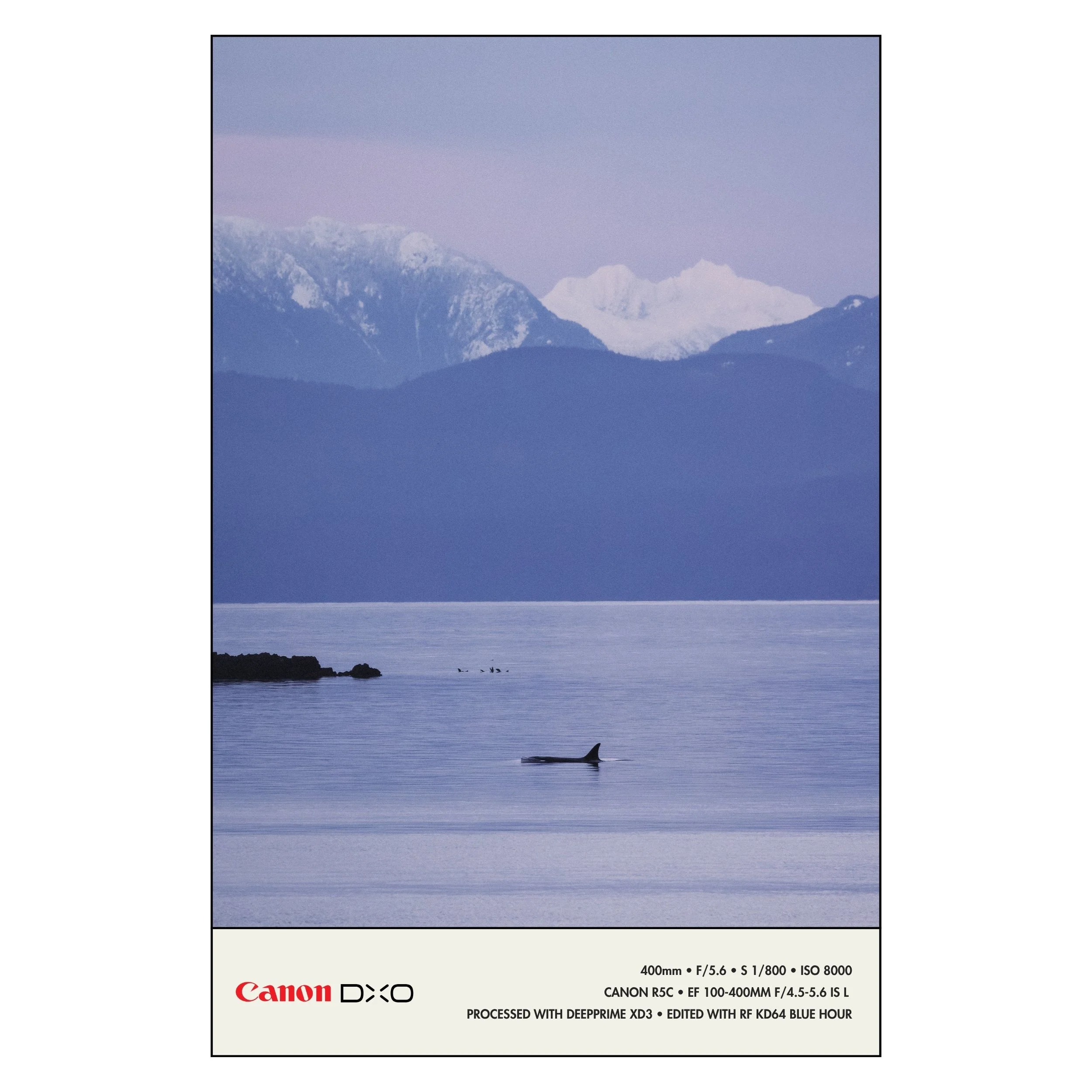
That is precisely where PureRAW comes in: its whole purpose is to give you a cleaner, better interpreted starting file, and in my experience, it remains one of the best tools for that job when it comes to very high-iso scenes coupled with planned heavy cropping or to help combat the smaller sensor like those found in drones.
One analogy I thought about the other day, while filming a video about PureRaw, is that it is like washing your ingredients before cooking. You can, of course, skip the washing step and go straight to cooking, but your meal might taste weird (been there). It is the same with your images: DxO PureRaw helps you “clean” your raw images before getting into the cooking stage with sliders and masks.
What is new in PureRAW 6
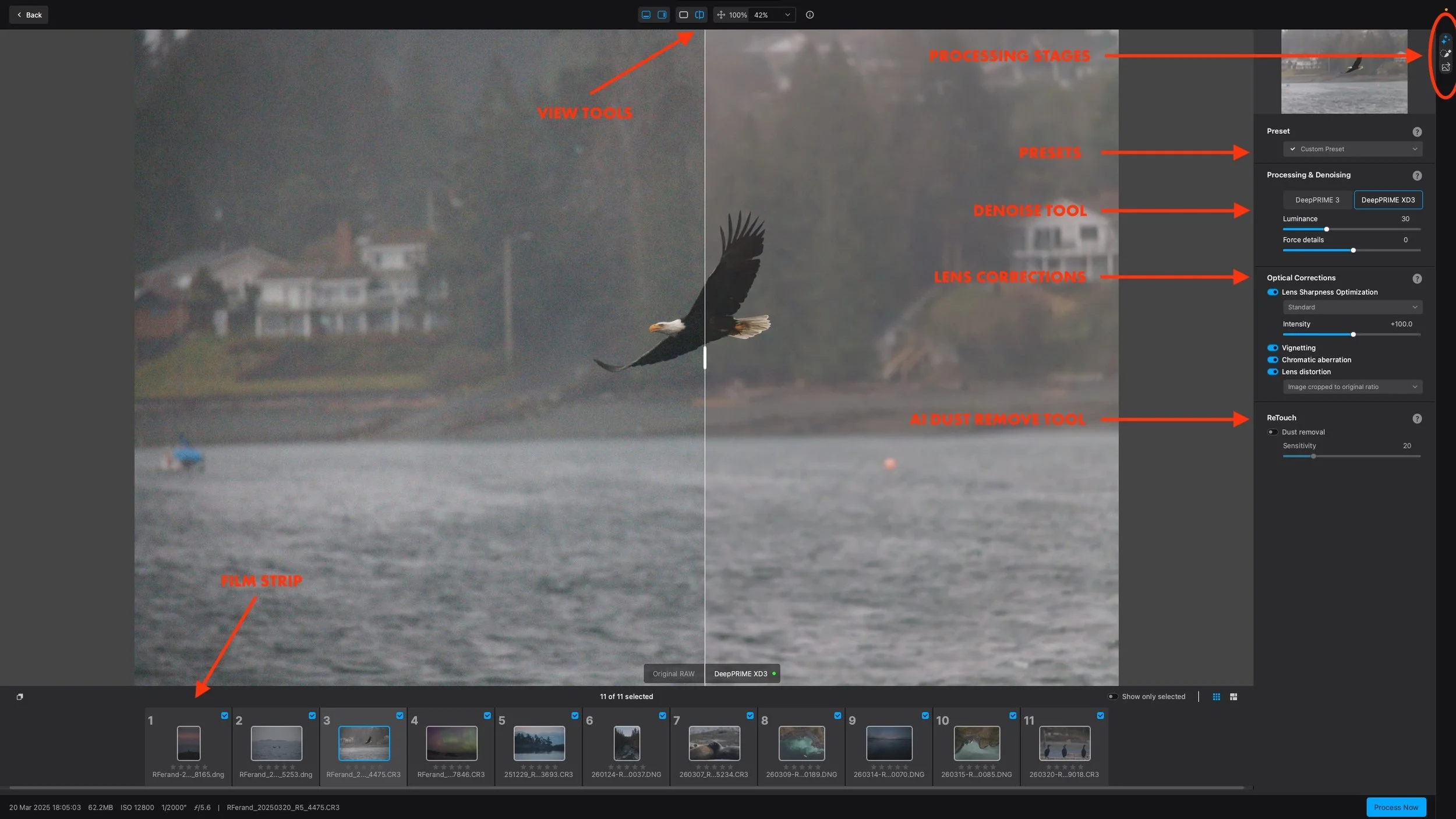
The main addition to PureRaw6 is their most extensive neural engine, DeepPRIME XD3. DxO has expanded support, so XD3 is now available across both Bayer- and X-Trans-based cameras. In plain terms, the promise is simple: better noise reduction, better preservation of fine detail, and cleaner texture without the file turning brittle or artificial. That is the heart of this release.
DxO also added a compressed DNG option called High-Fidelity Compression, which can reduce file sizes by up to 4x. For photographers who process large batches, that will be one of the most practical additions in the whole update. Personally, I still lean toward maximum flexibility because I often push files hard and crop deeply, and I’m always wary of compressed raw files.
Another new feature is AI sensor dust removal. With a simple toggle, PureRAW takes care of most of the work and saves you from manually patching out dust spots. Lightroom Classic recently added a similar feature, but there is still an advantage to doing it in PureRAW, it becomes part of the file’s initial cleaning, so it only needs to be done once. In Lightroom, if you often use virtual copies like I do, resetting one version to try a different edit can also reset that correction.
And then there is the improvement I noticed most in daily use: speed. PureRAW 6 is much faster than DxO PureRaw 5. I processed the same batch on both versions and was pleasantly surprised to see PR6 roughly 35% faster.
27 CR3 images (45MPX) processed with DeepPRIME XD3 in PureRaw 6: 11:46 minutes
27 CR3 images (45MPX) processed with DeepPRIME in PureRaw 5: 18:11 minutes
(Tested on a 2021 Macbook Pro 16” M1 Max)
PureRAW 6 versus PureRAW 5
On paper, the headline is that XD3 is no longer in beta mode. But in day-to-day work, the biggest difference for me is still processing speed. That was the first thing I felt. And in a real workflow, the first thing you feel often matters more than the first thing you read on a product page. As for image quality, the differences between PureRAW 5 and PureRAW 6 can be subtle depending on the file. On very difficult images, the newer version does seem better at balancing noise reduction with fine detail, without rendering the image in an oil-painting look.
How I use it inside Lightroom Classic
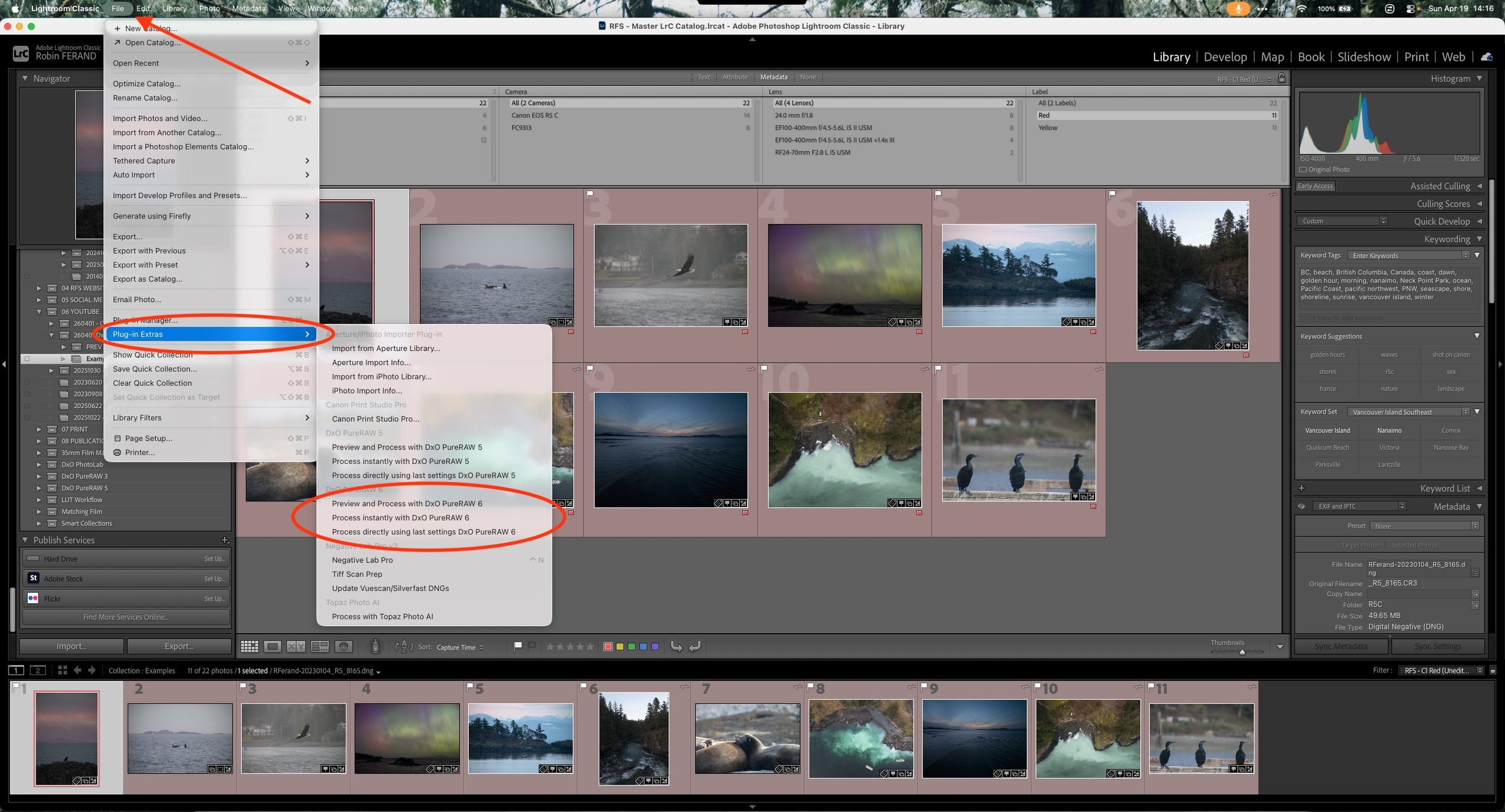
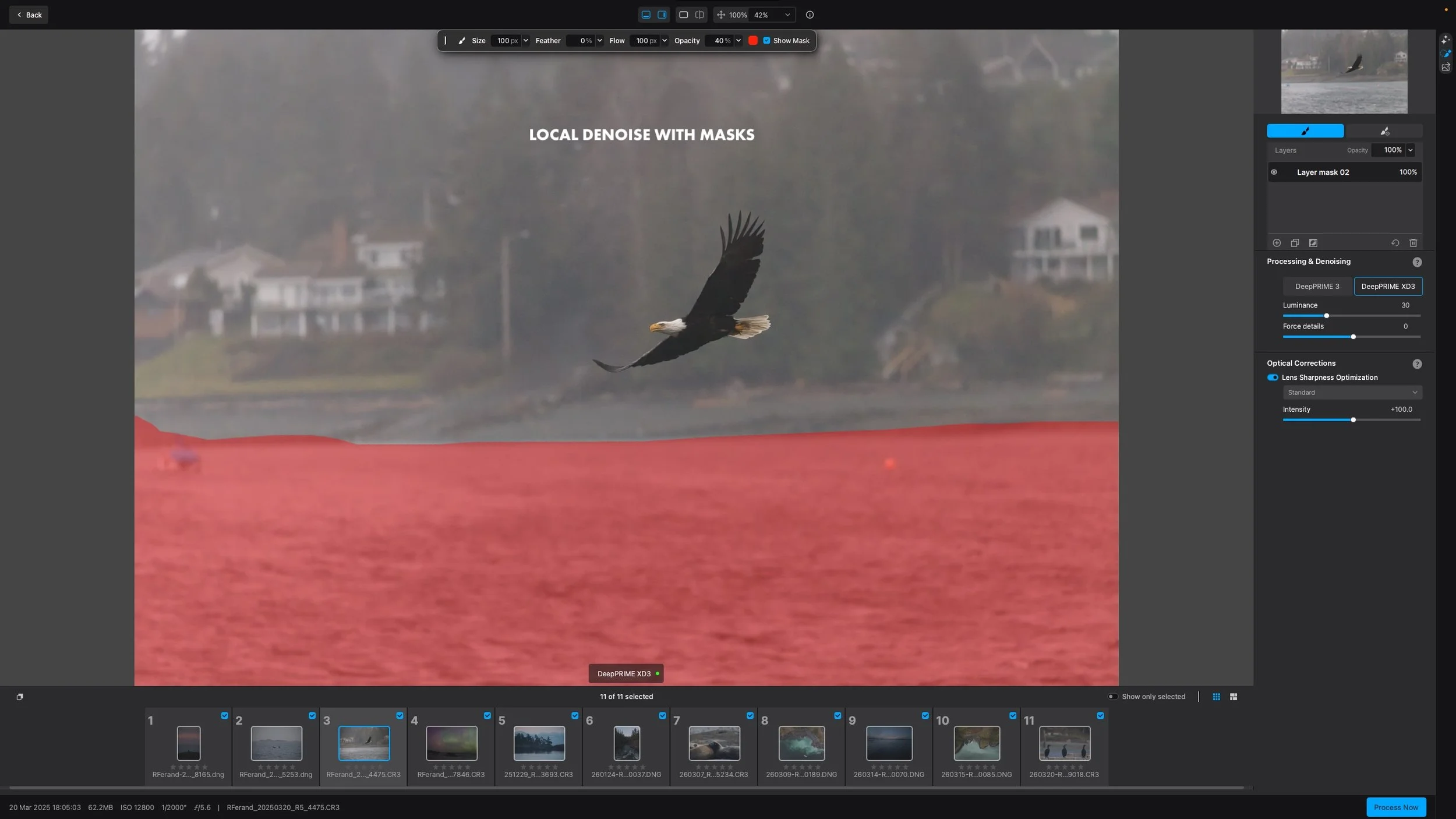
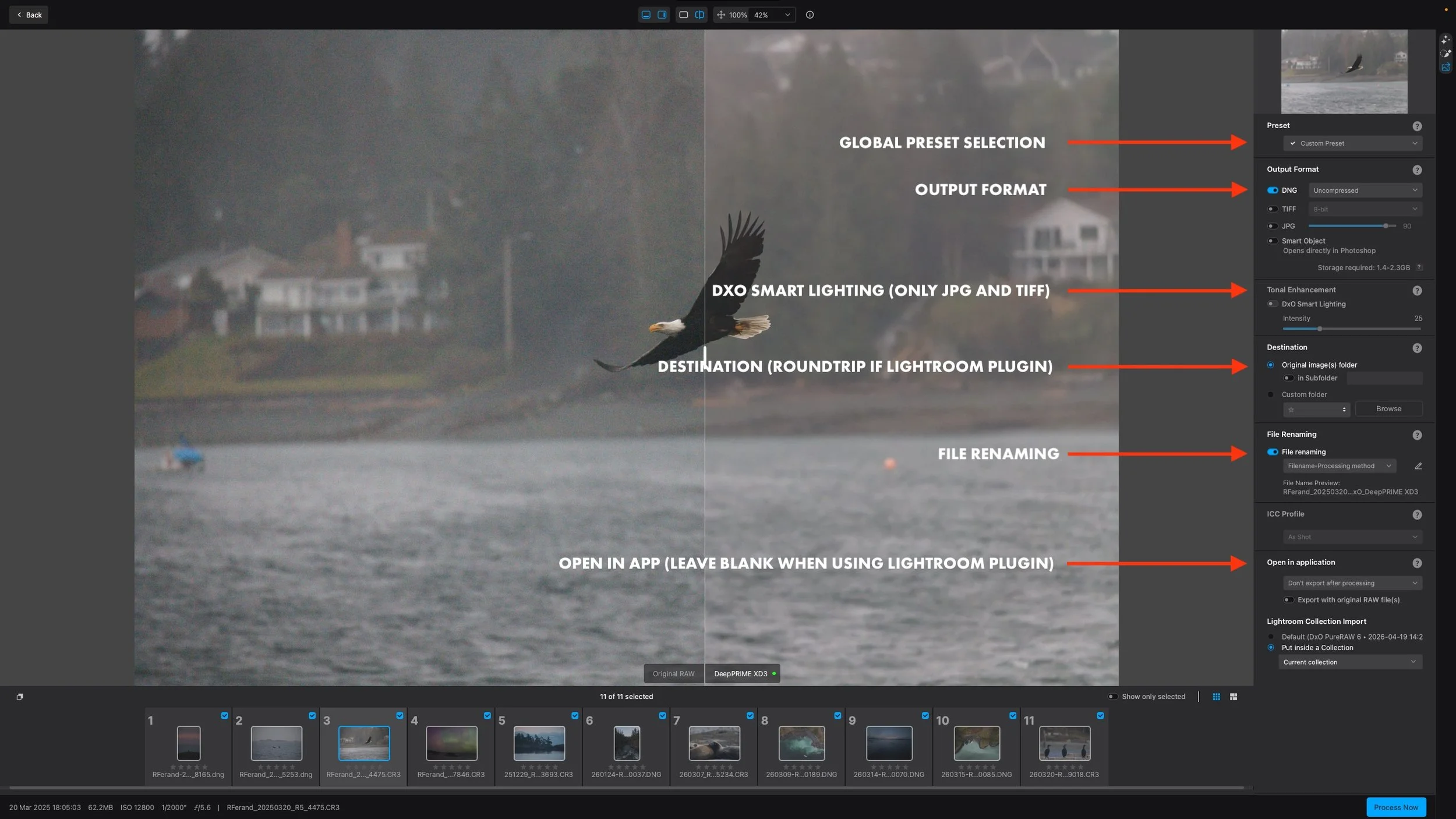
My workflow with PureRAW is simple, and that simplicity is part of why I still use it. Most of the time, I send files to it directly from Lightroom Classic rather than opening it as a standalone app. The key is that I do not send everything through it. I cull first. Always. That matters even more in wildlife photography, where a short burst can leave you with an absurd number of nearly identical frames. Running all those files through PureRAW would waste time, storage space, and my overall patience.
So I make my selections first. Usually, that means moving images through a selection collection and then into an edit collection once I know they are worth keeping. Only then do I send them to PureRAW. That keeps the process light while also keeping the software intentional. It stays a tool I choose for specific files and not my entire catalogue. If you don’t use Lightroom Classic, you can use PureRAW as a standalone application. It can even detect a memory card and open images automatically for processing.
A word about PureRaw and PhotoLab Elite
There is one important thing worth noting. If you are already using DxO PhotoLab Elite, PureRAW won’t bring extra value. DeepPRIME 3, XD3, and DxO’s lens corrections are already built directly into PhotoLab Elite. Before the original version of PureRAW was released, I would often use PhotoLab alongside Lightroom for exactly that reason: to denoise my files and apply lens corrections before continuing the edit in Lightroom.
Presets, batches, and practical use
PureRAW becomes more useful when you stop treating it as a magic button and start treating it as part of a system. That is how I use it.
I have different presets for cameras and different ISO ranges because not every file needs the same treatment. A moderately noisy image does not require the same level of intervention as a file pushed to the maximum ISO of the camera. Once I have marked my selected images in Lightroom, I can group them by ISO range, send the batch to PureRAW, and apply the preset that best fits. Inside the software, the settings I adjust most are luminance strength and the Force Details slider. I usually work with XD3 now because it is the latest engine, but I will often use Force Details in the negative. Push it too far and it can become aggressive. Furthermore, I never fully remove the noise from my photographs. As a hybrid shooter using both digital and film, I like to keep a grainy texture in my images while still reducing colour noise. Once my settings are dialled in, I keep the file naming simple and add DXO to the end of the filename. I also make sure the processed files return to the current Lightroom collection.
Tip: For anyone new to the plugin, there is one useful little detail: when you send files from Lightroom, you do not need to manually import the processed images. They round-trip automatically.
Back in Lightroom, those processed DNGs become my working copies beside the original raw files. If I want to move quickly, PureRAW also lets me bypass its main window and process files using the latest settings. That can be useful once your preset system is stable and predictable, but not so much if you want to process files from different cameras at once.

It’s not only about denoising
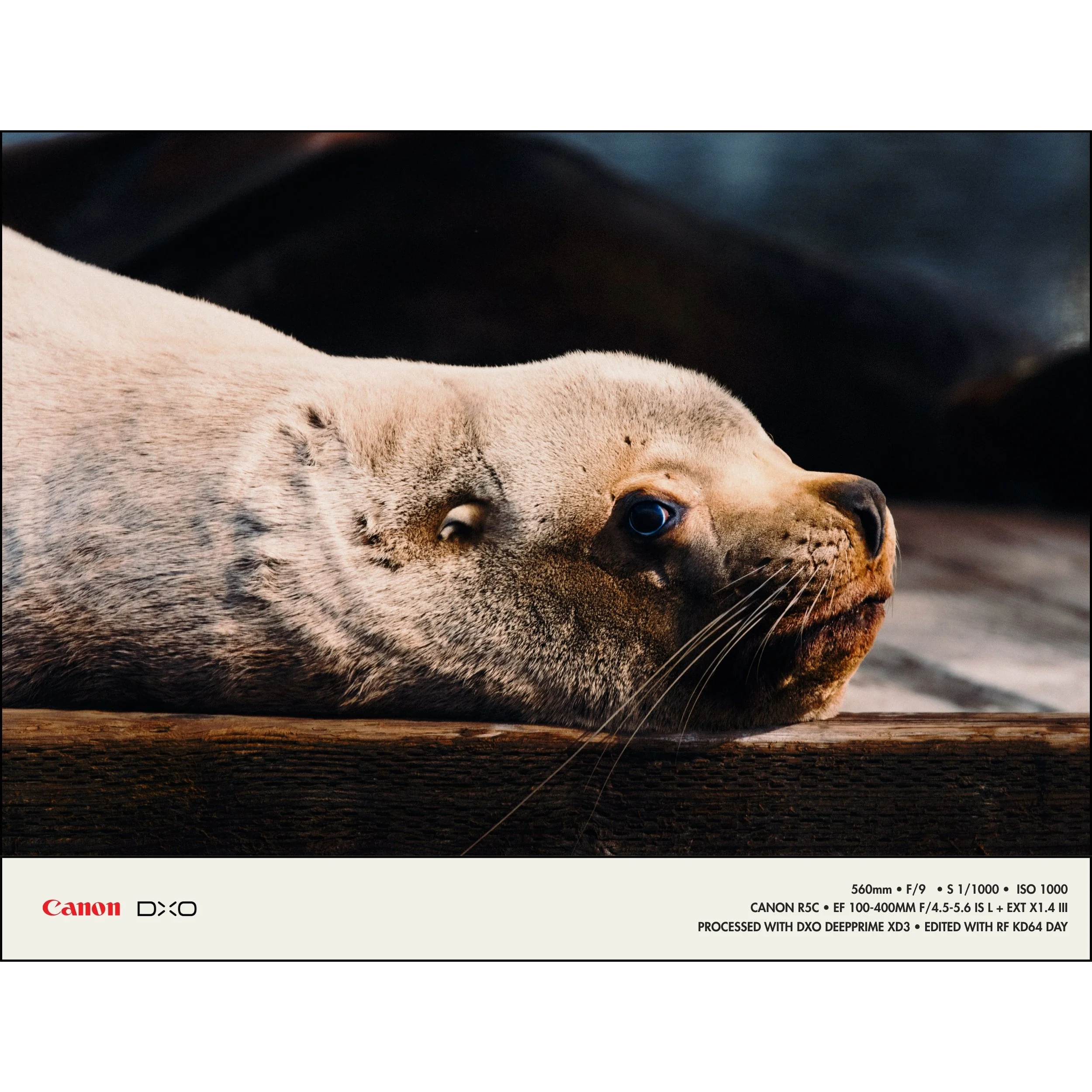
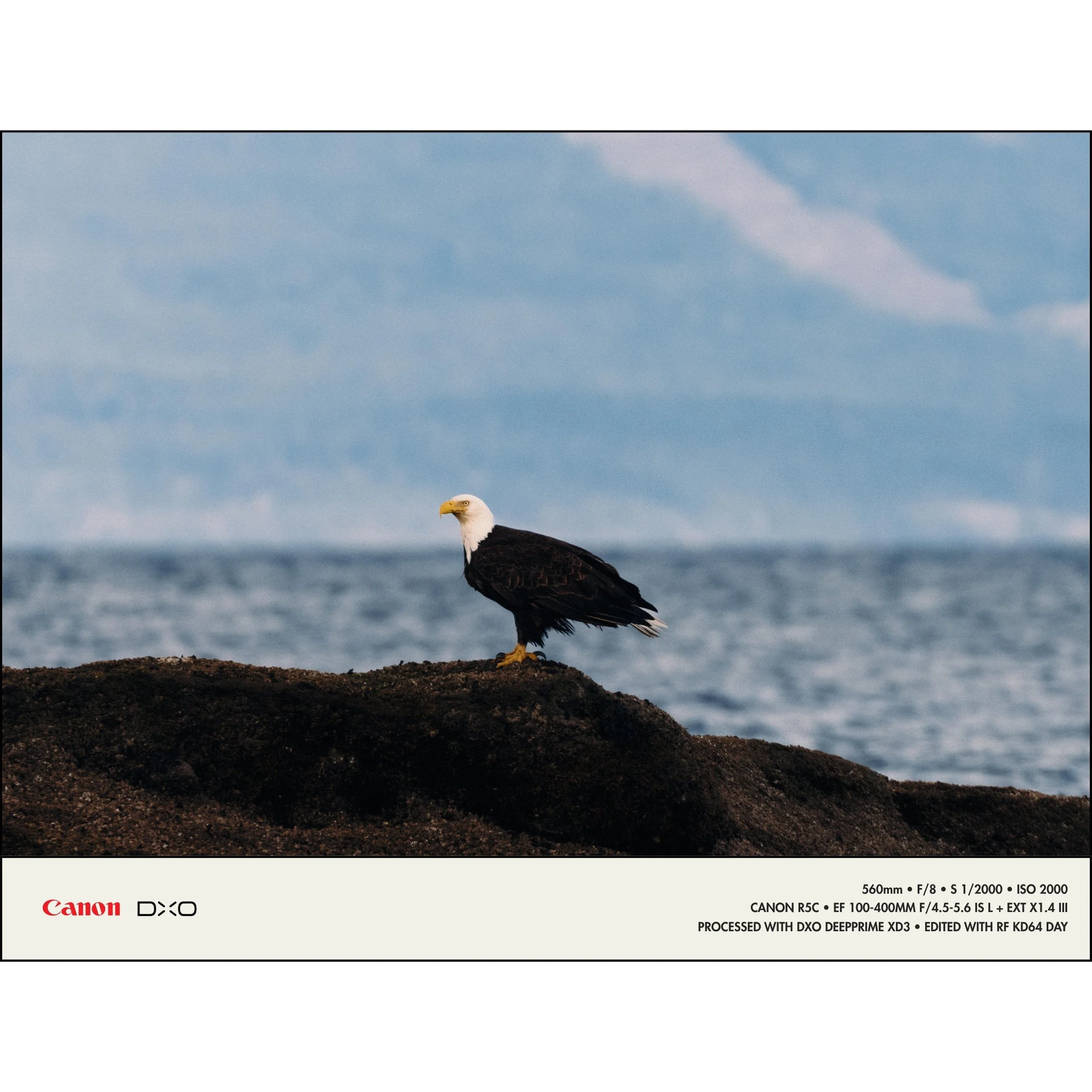
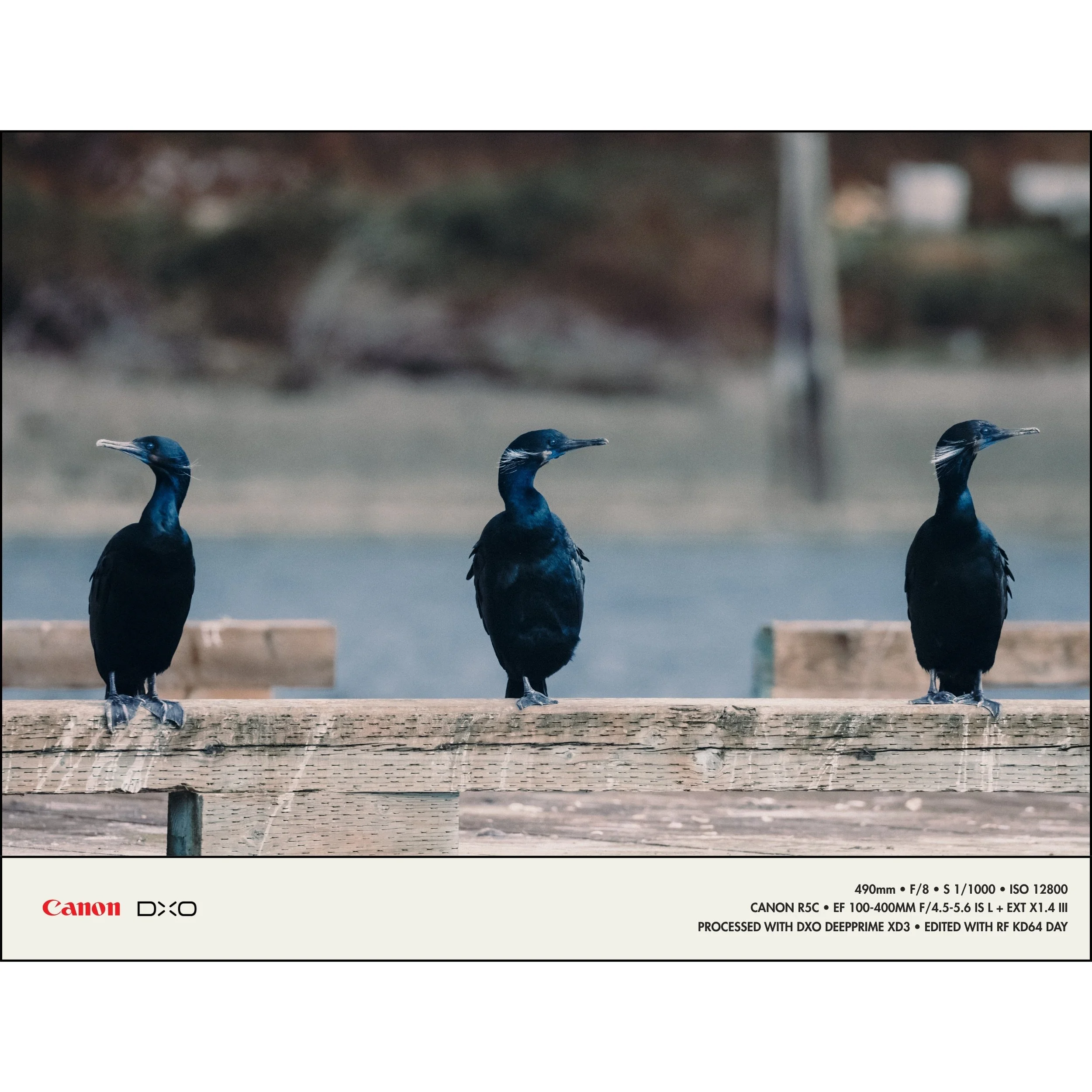
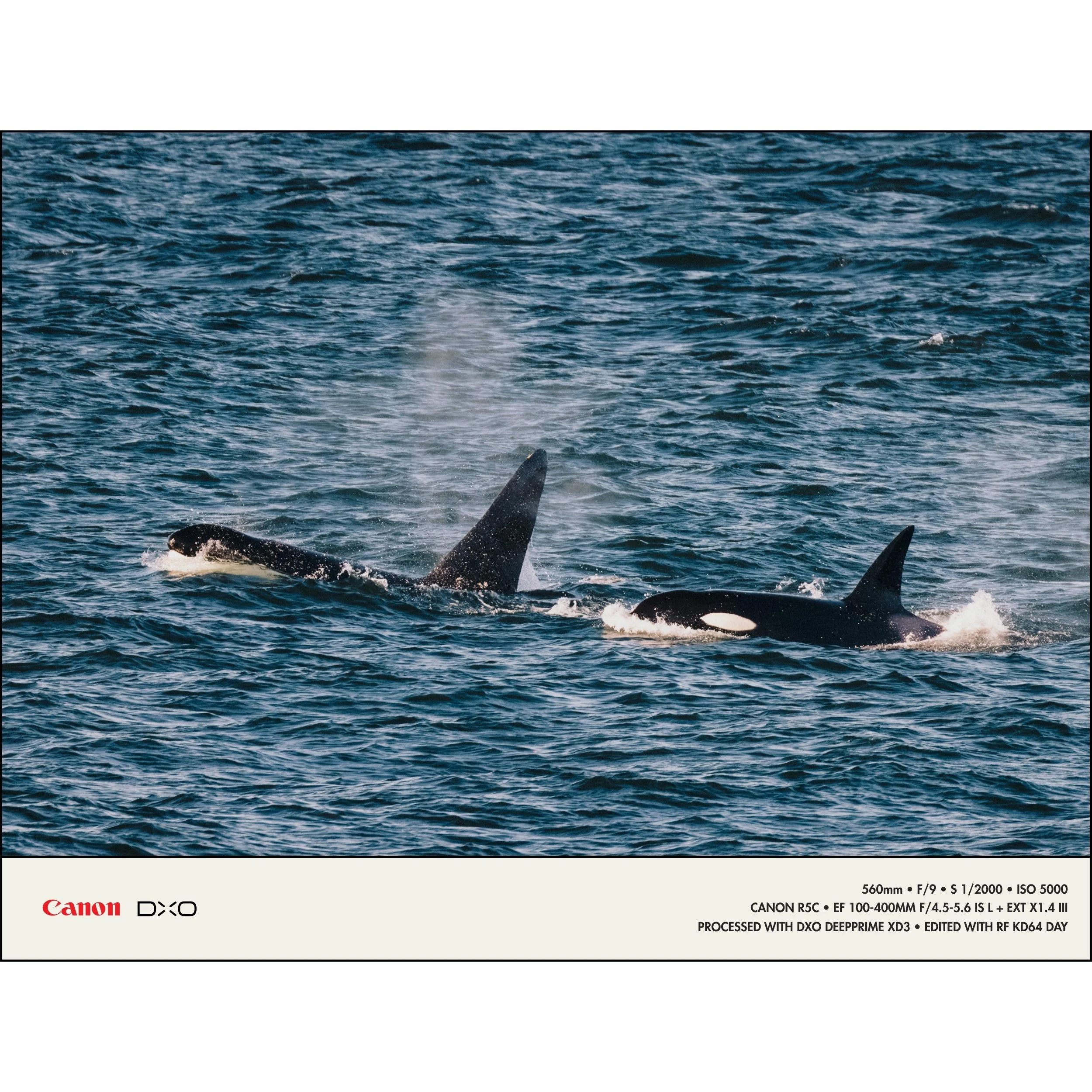
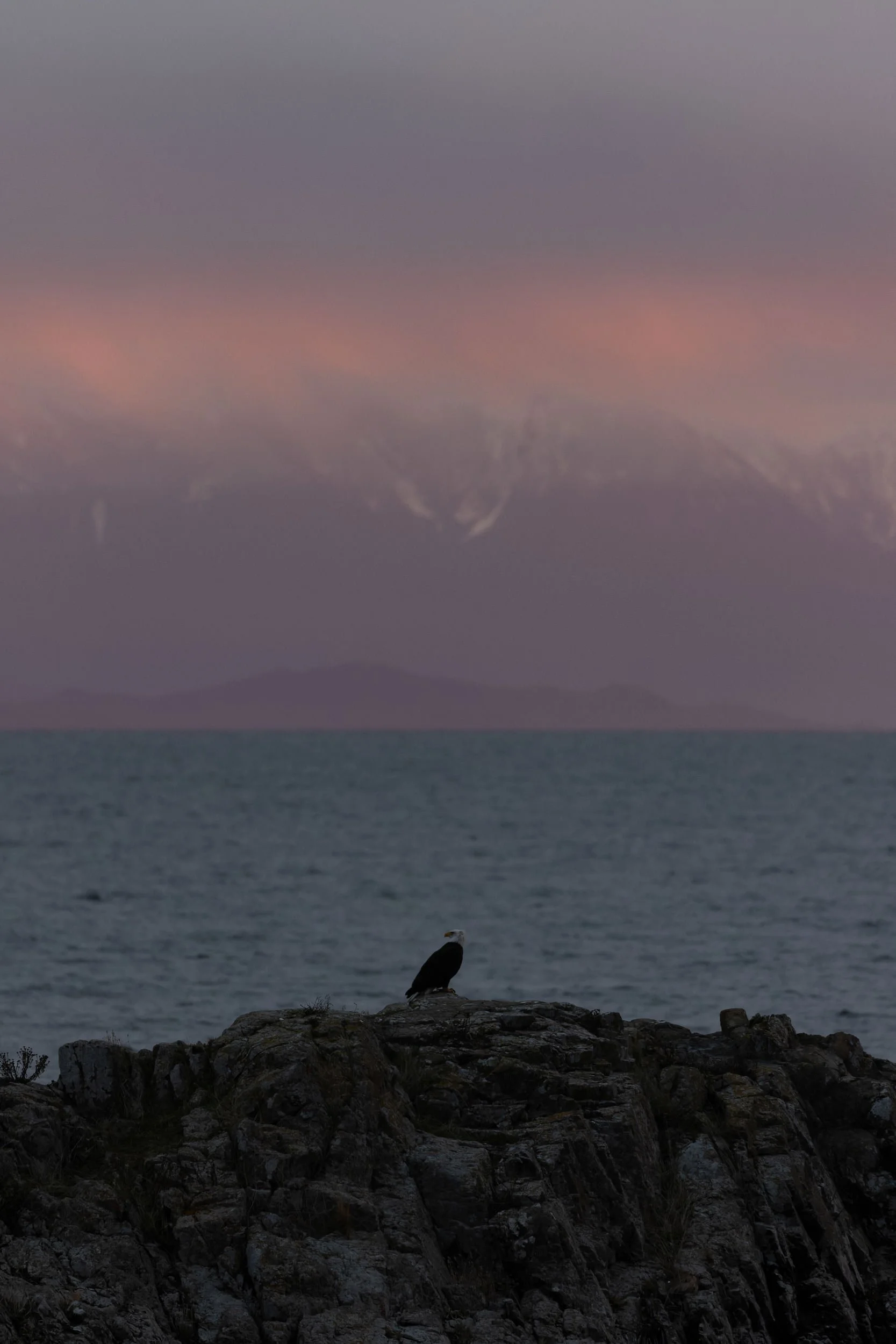
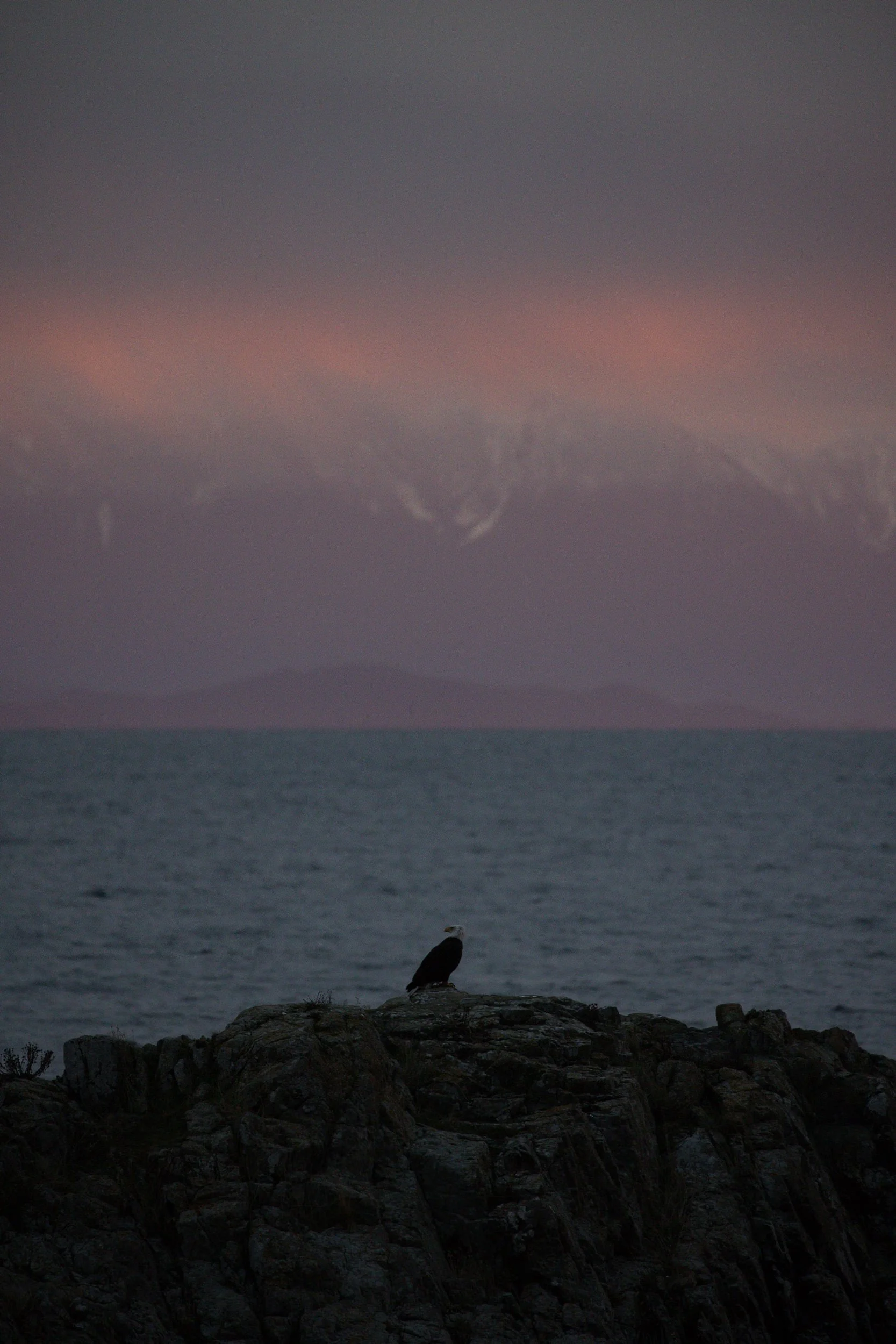
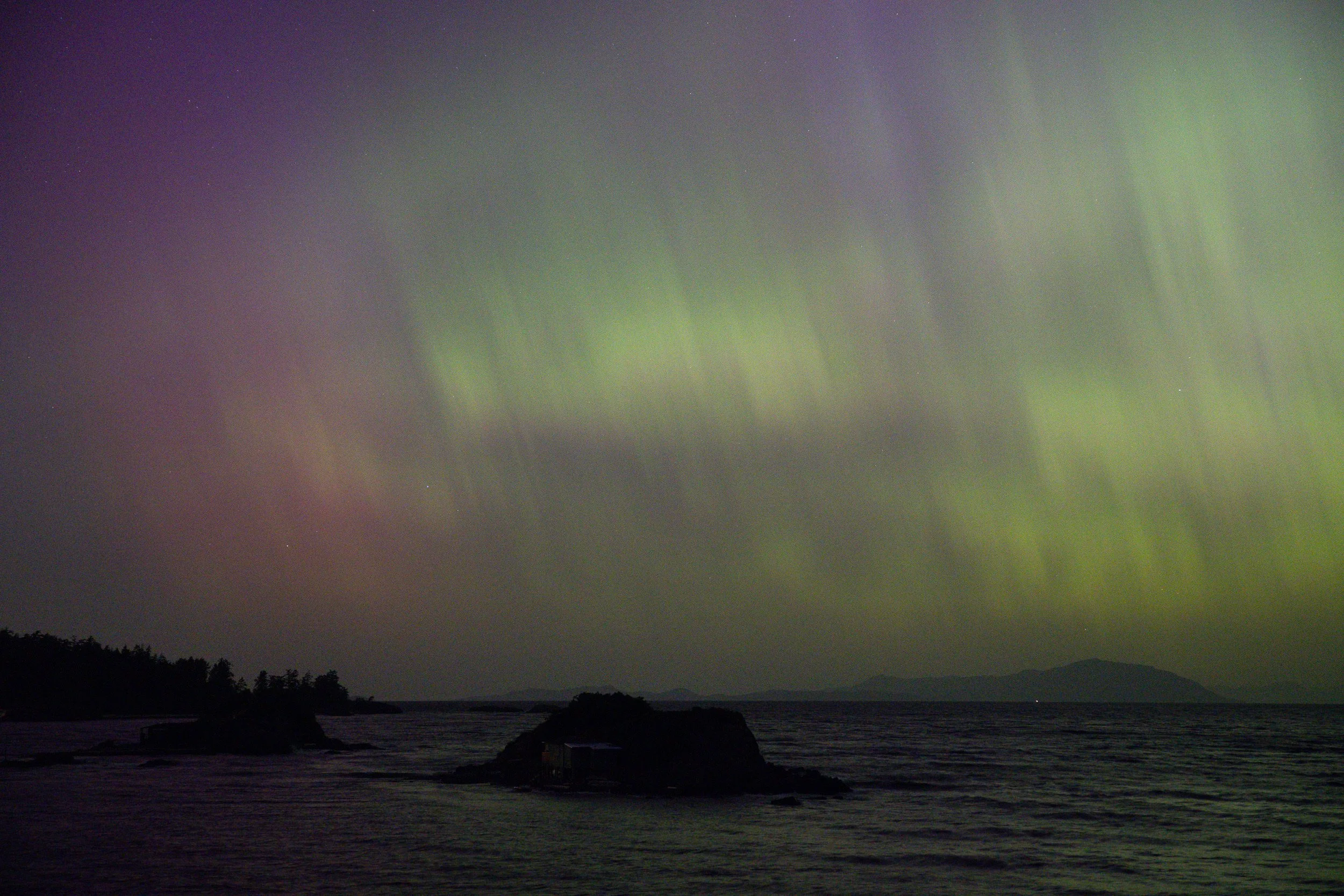
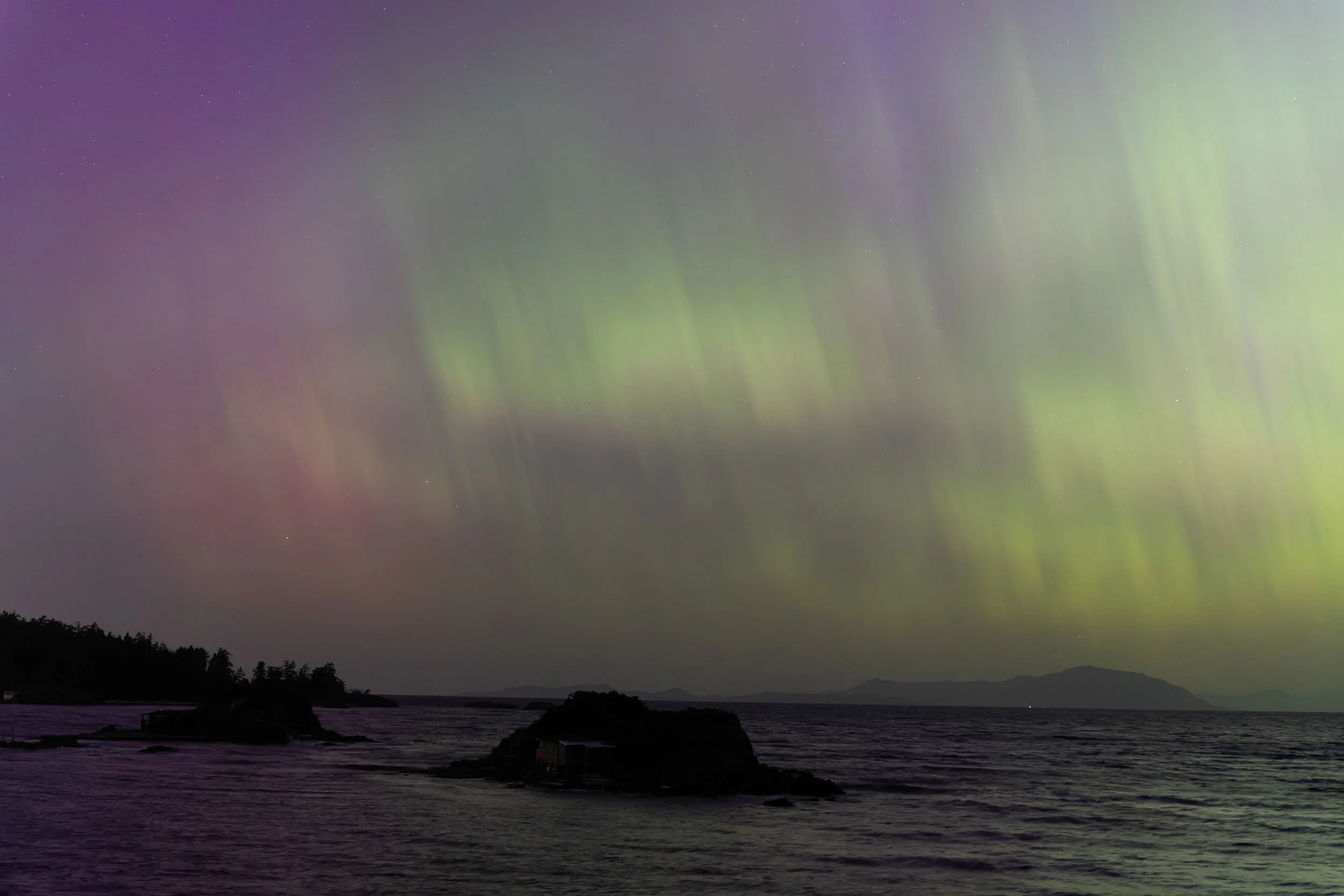
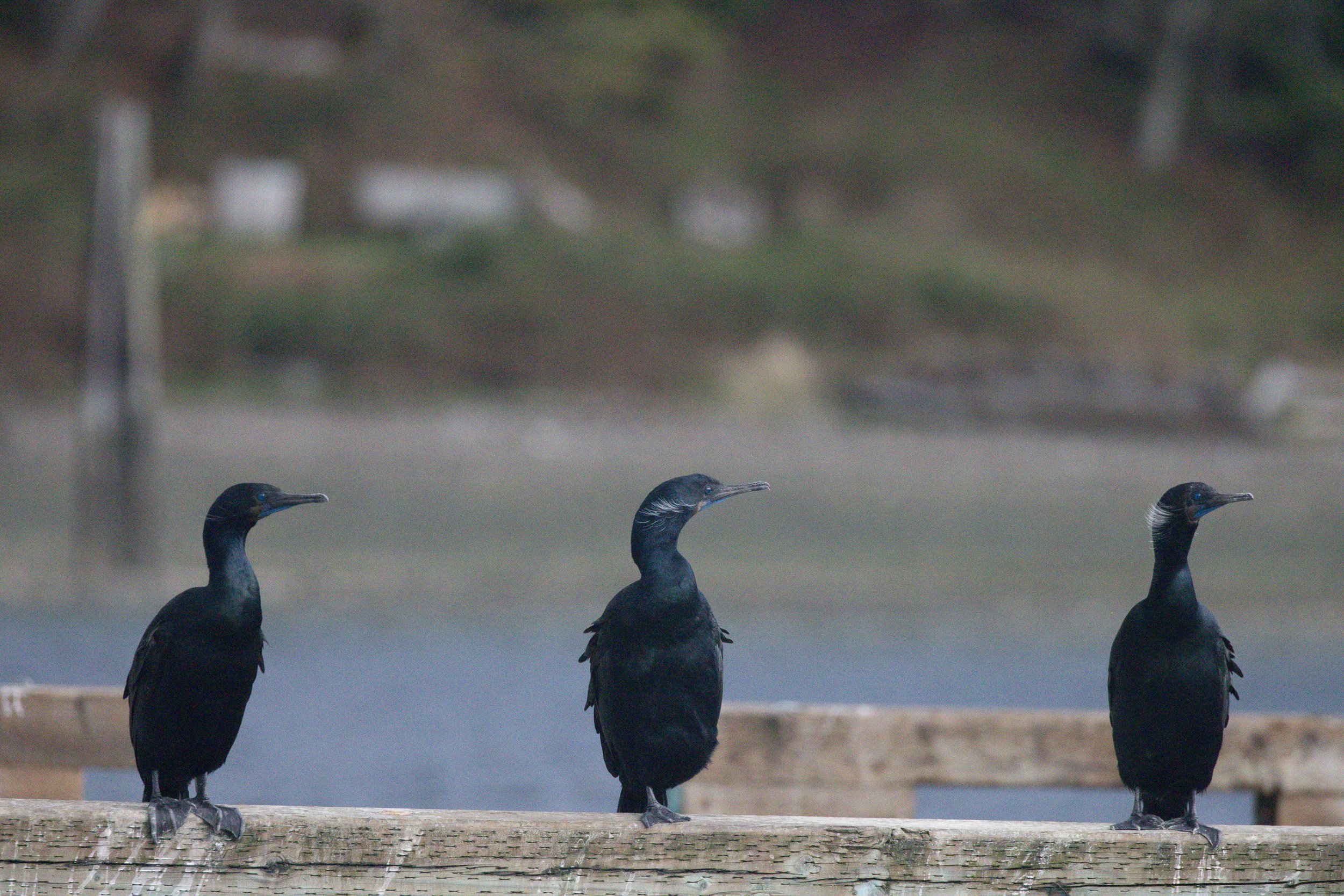
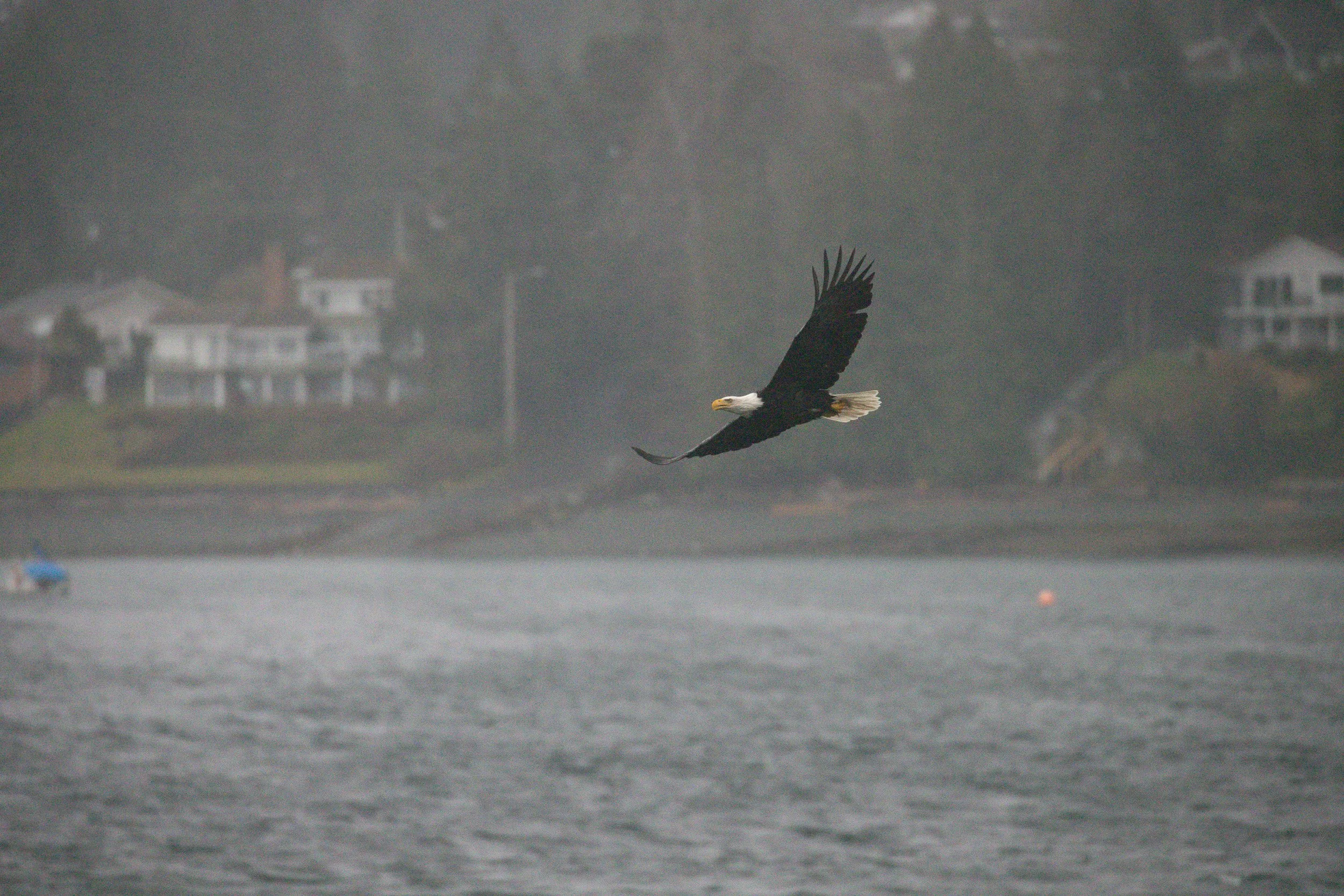
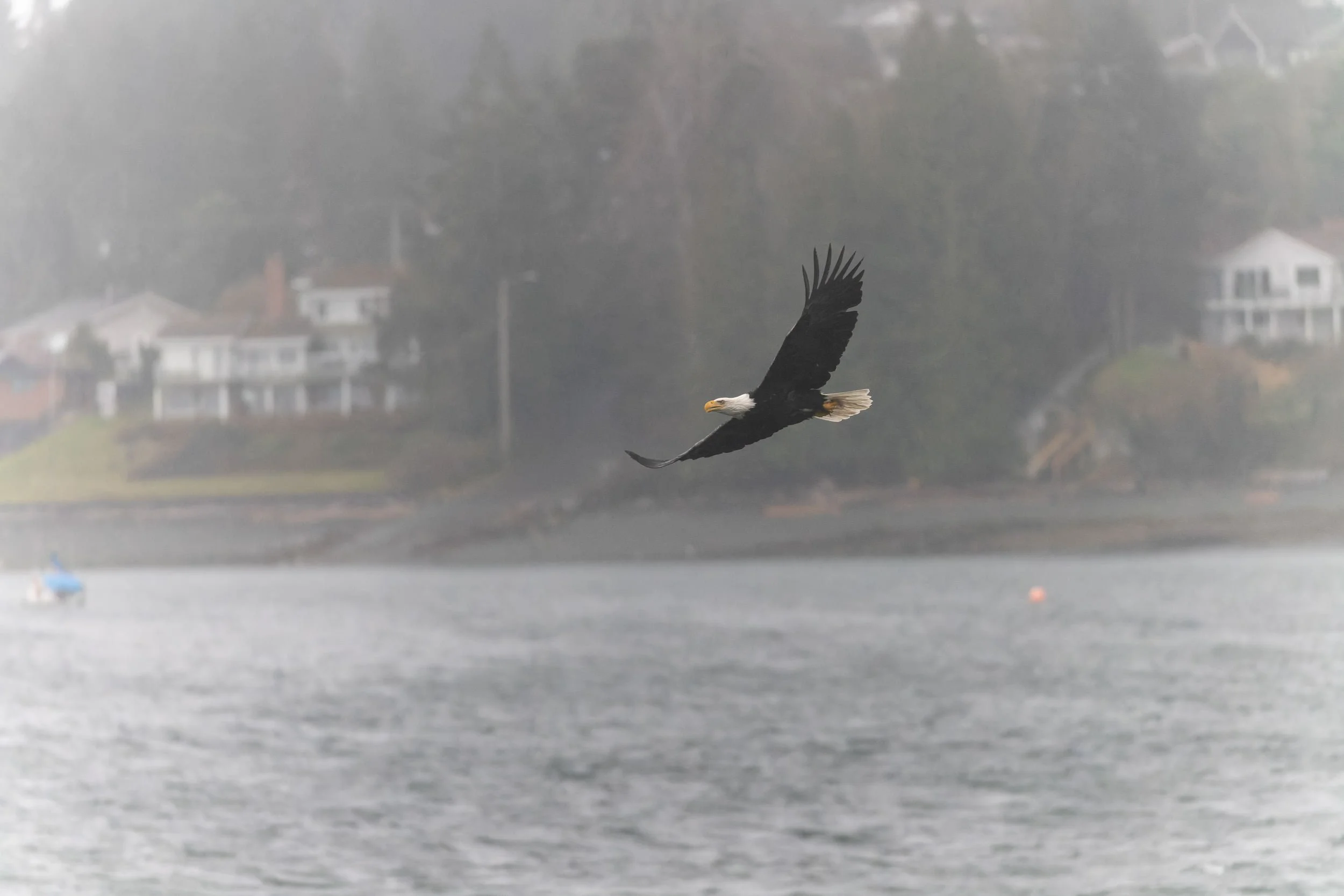
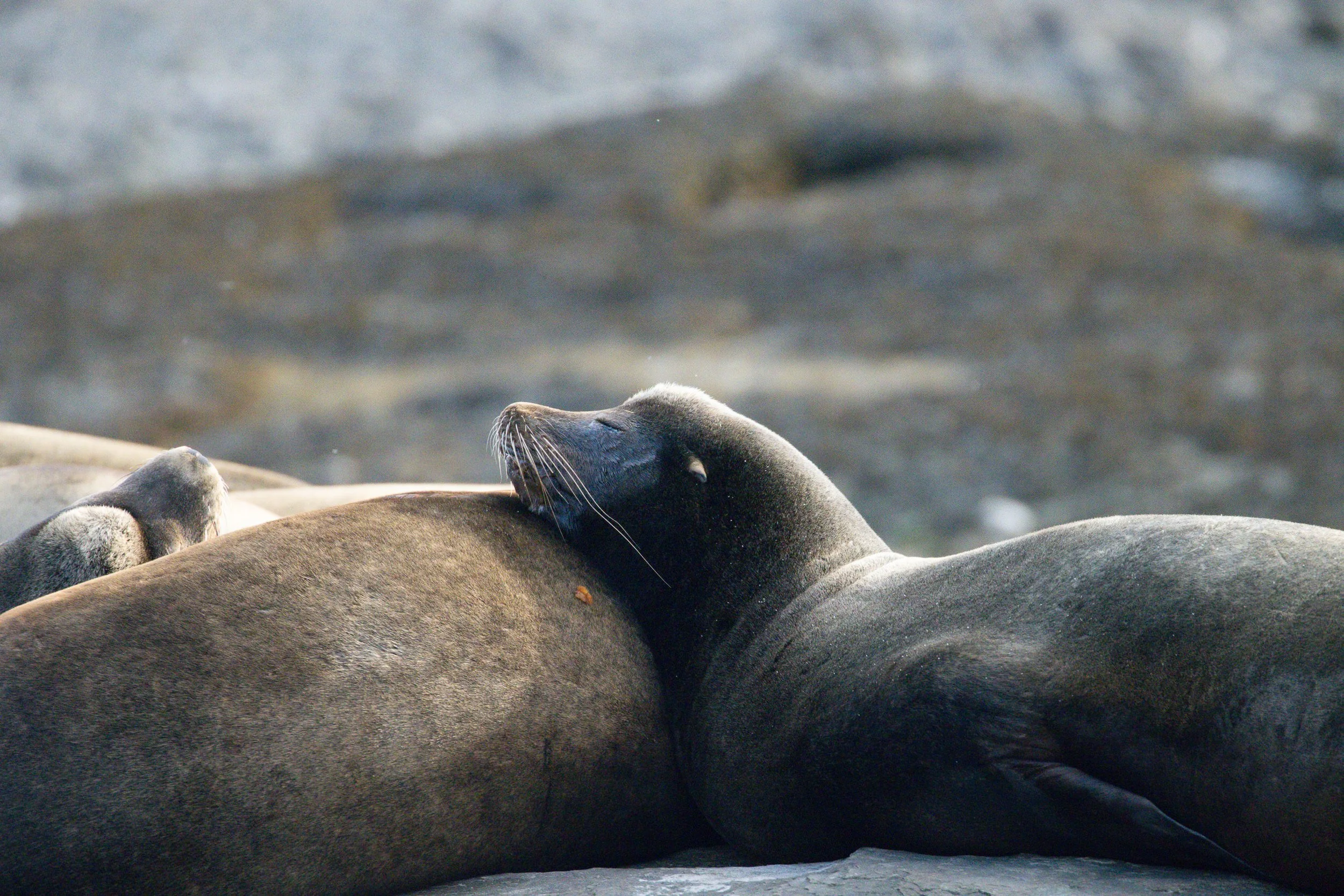
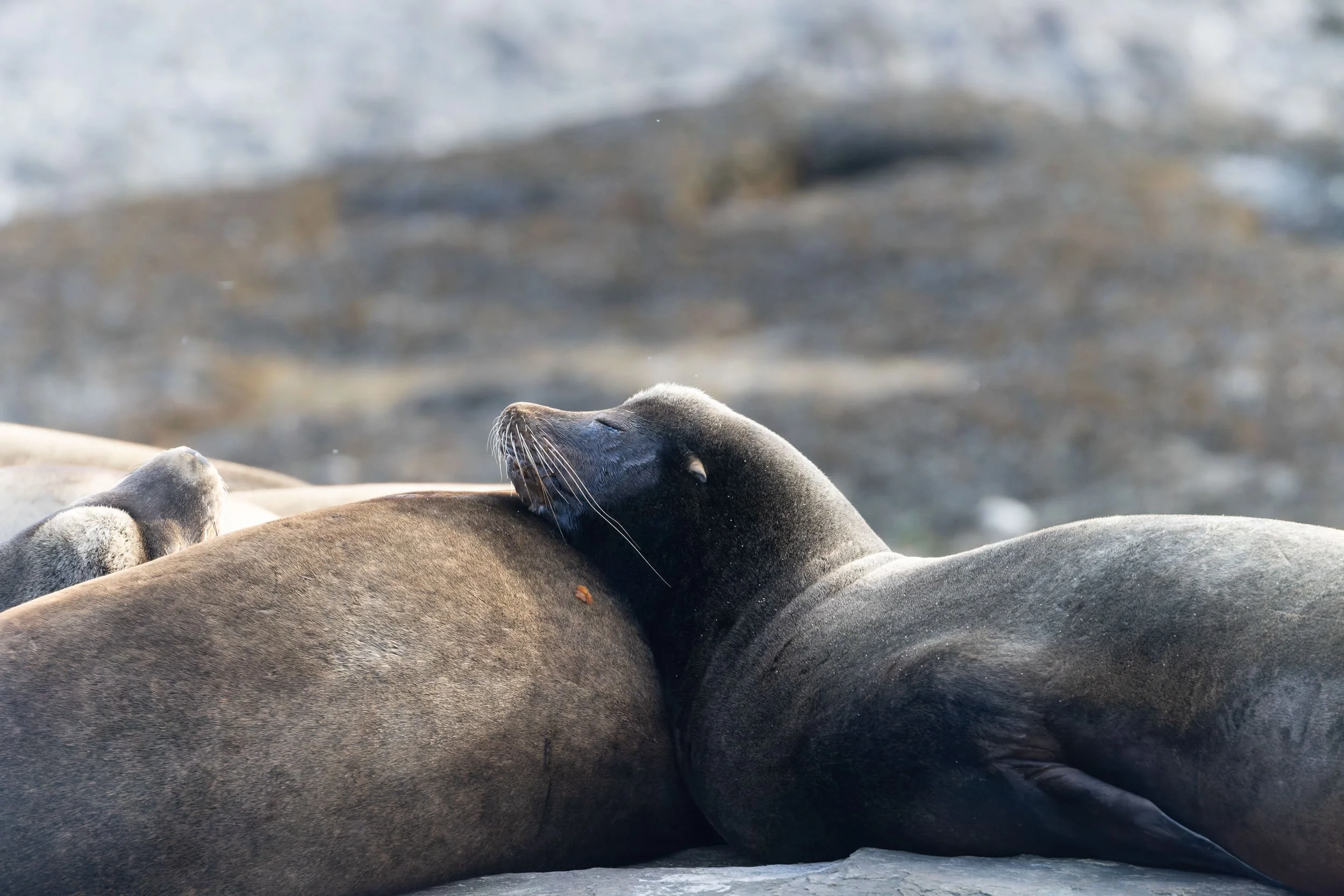
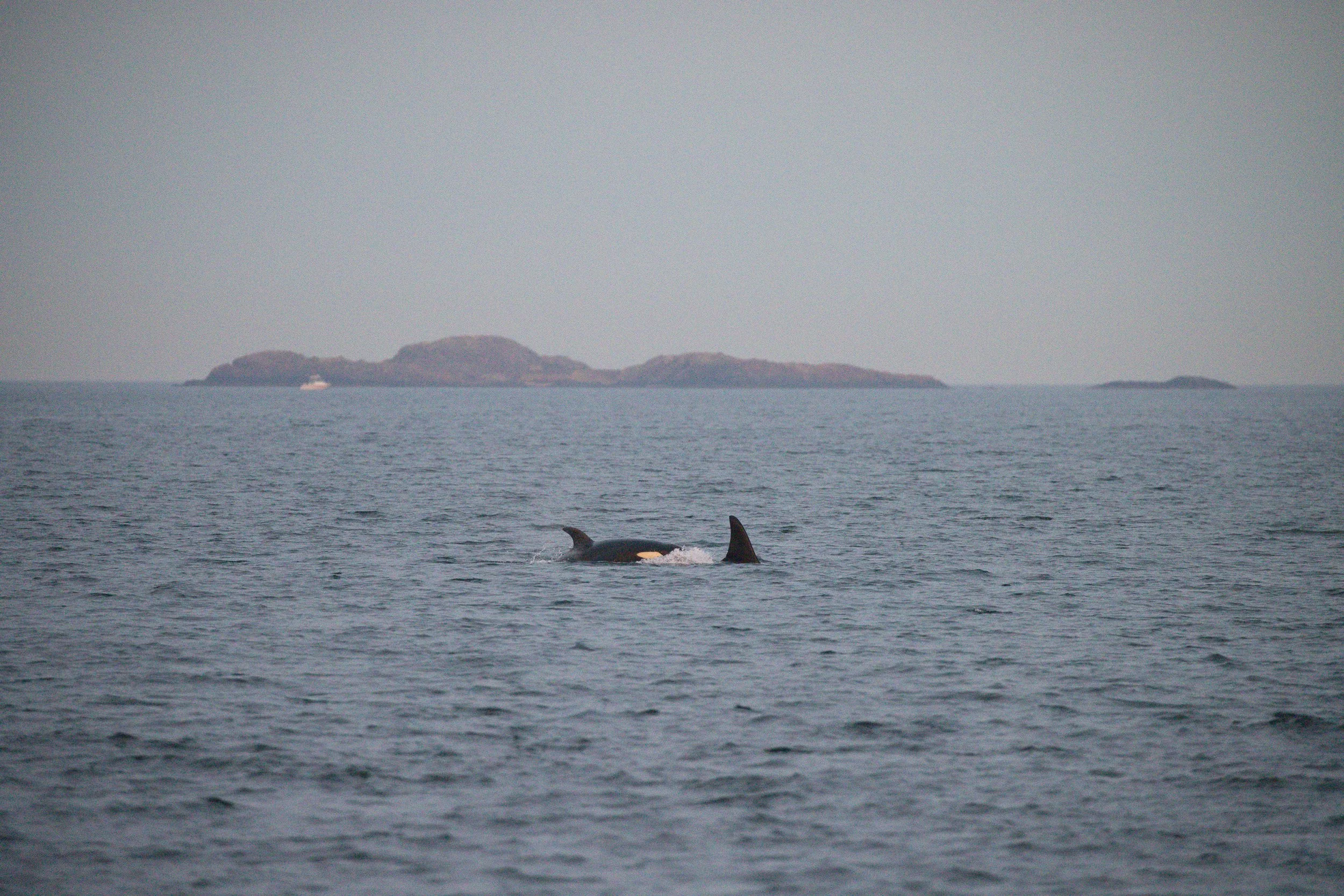
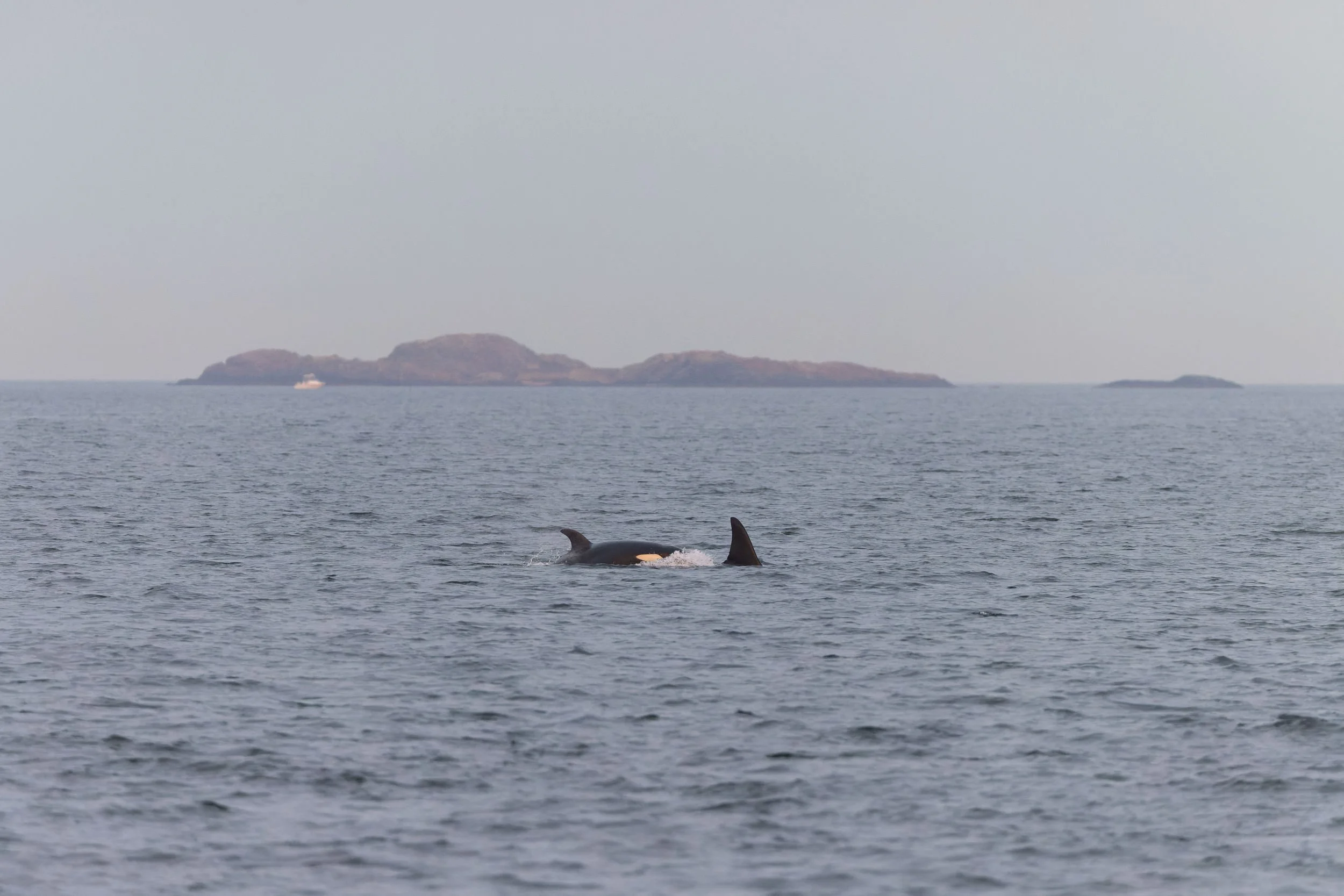
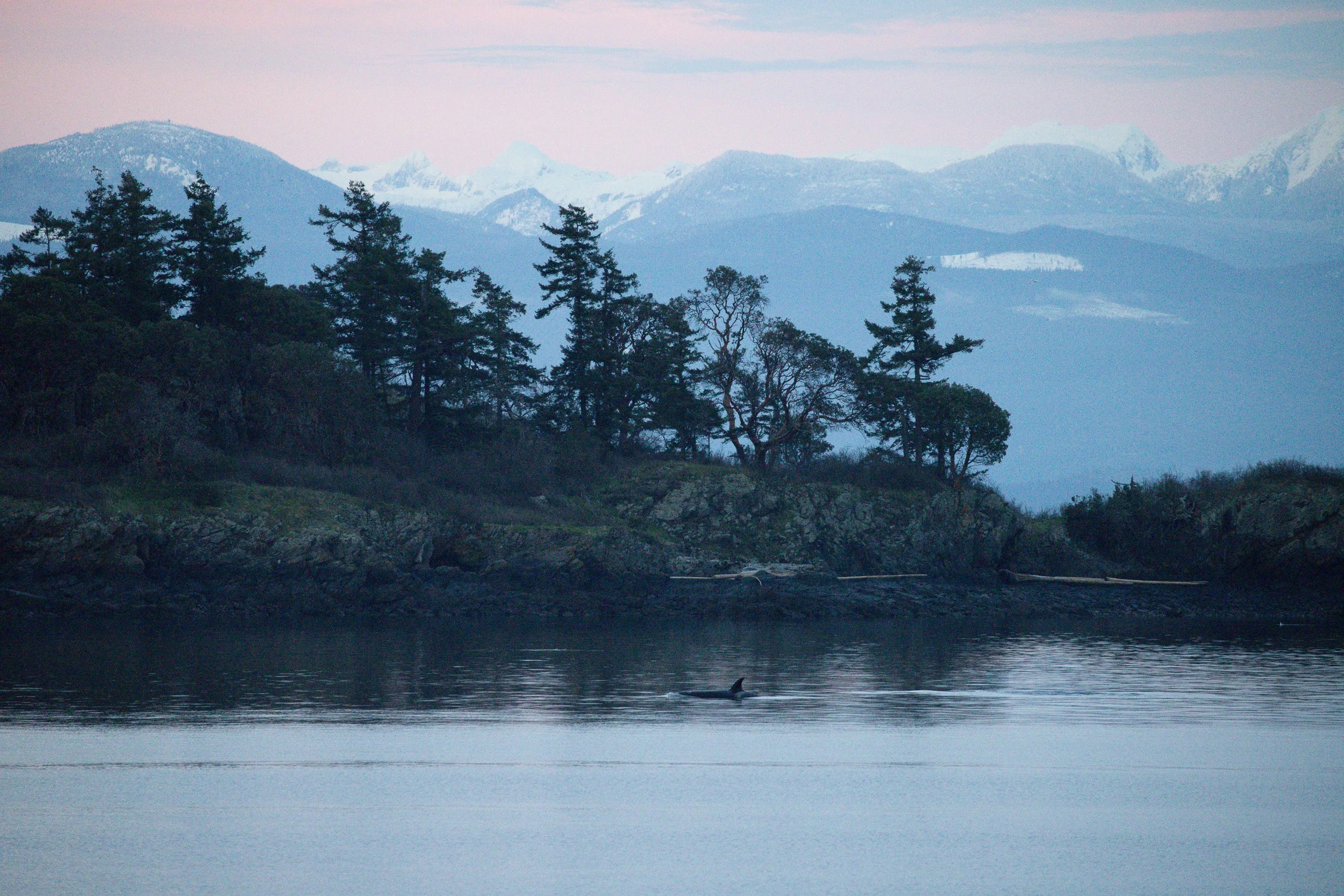
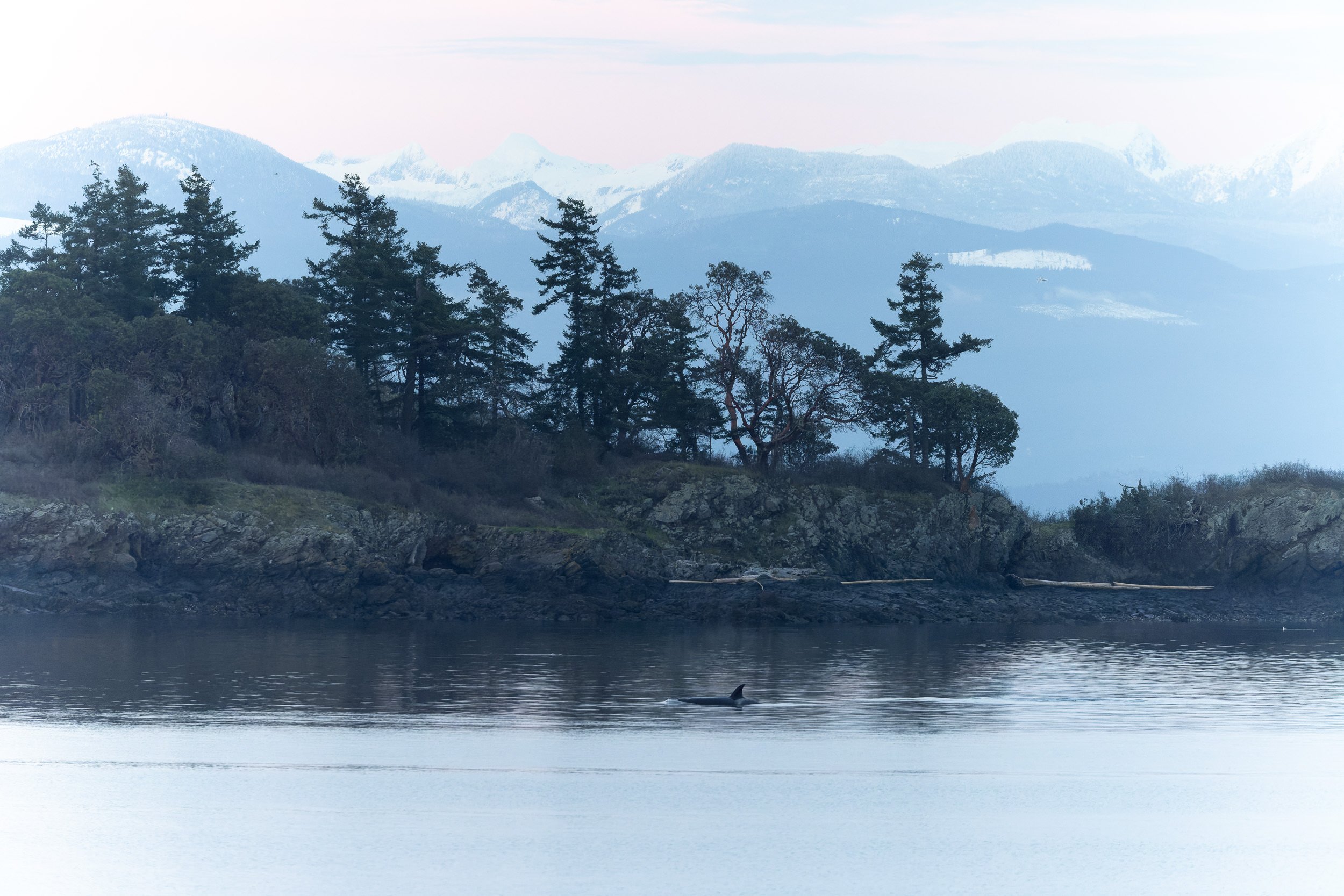
The place where PureRAW impresses me most is on difficult files. High-ISO wildlife images are still the clearest example. When I compare a very noisy frame from the Canon R5C at ISO 12800 or higher with the processed result, PureRAW gives me a starting point that feels much cleaner without worrying about the image breaking apart once I start editing it. That balance is why I have stayed with DxO. I have used Lightroom AI Denoise. I have used Topaz. I have tried other options over the years. And I still come back to DxO for two main reasons:
I prefer the look of the files it gives me. They feel cleaned up, yes, but still believable. And honestly, while I am not sure I would pass a blind test between Lightroom AI, Topaz, and DxO, I like the control I get from DxO.
The integration with Lightroom Classic makes the whole process much easier to manage. Launching DxO directly from Lightroom and having the files round-trip automatically matters more than it may sound. If I had to re-import the files manually and place them back into the right collection every time, I would probably have dropped the tool long ago.
Lens corrections are another reason I still like DxO so much. They remain one of the company’s strongest advantages, especially since DxO more or less pioneered lens profiles. The drawback, however, is that the software can feel restrictive when your camera and lens combination is not supported. If I mount a manual legacy lens on my Canon R5C, for example, PureRAW will not let me run denoising without a supported optical profile. I still find that frustrating. Sometimes I do not need the optical correction. I just want the noise reduction.
When DxO embraces drone photography
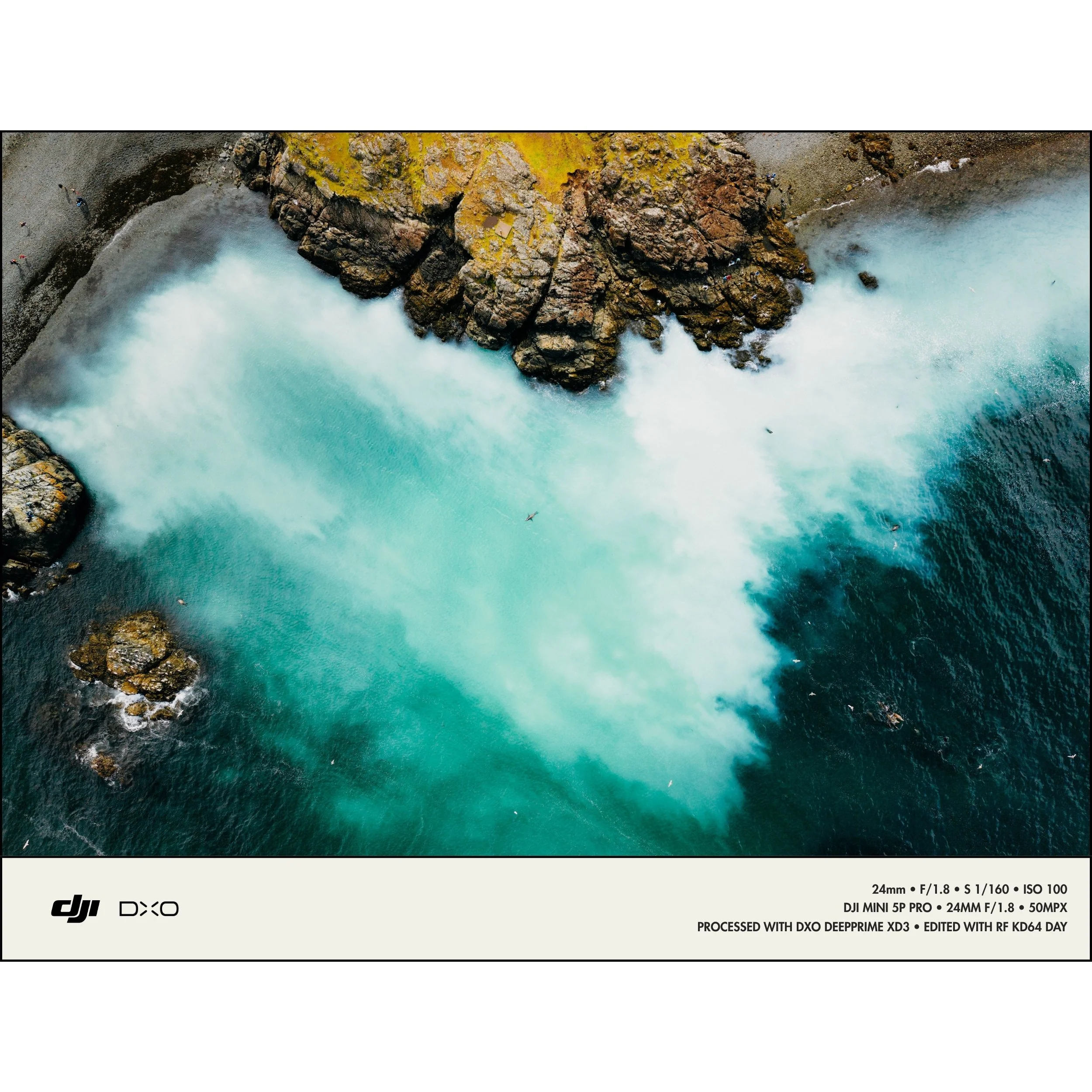
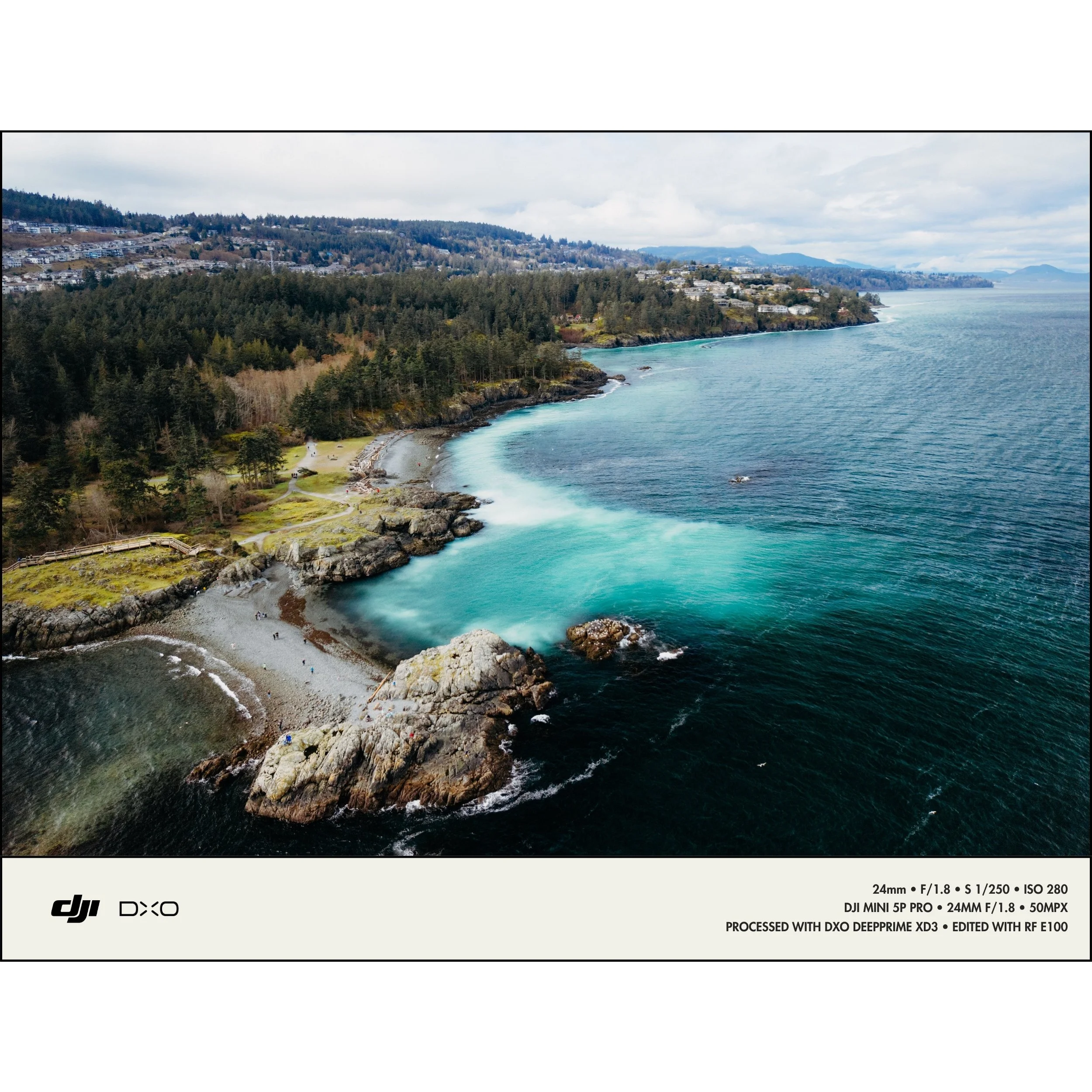
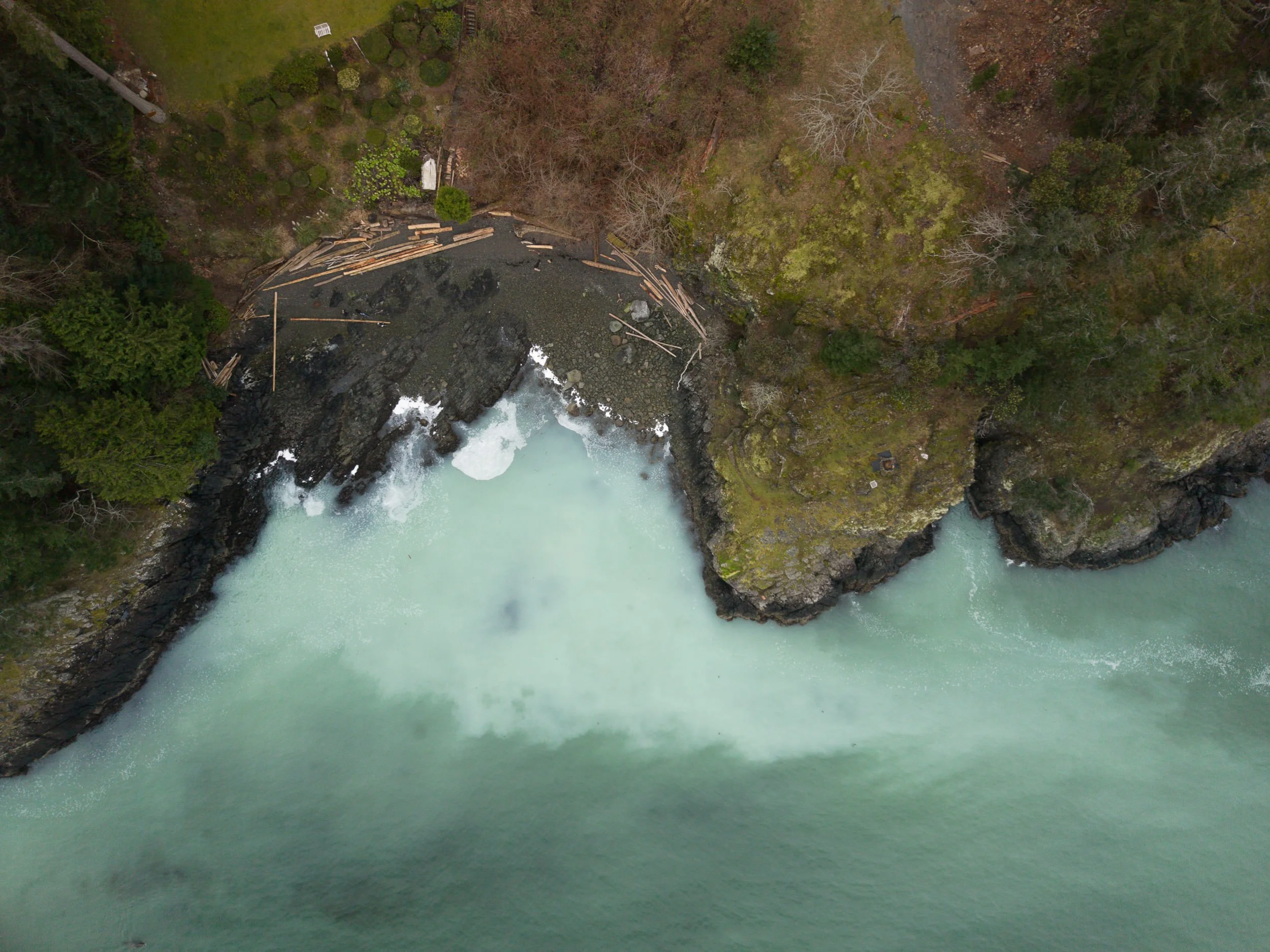
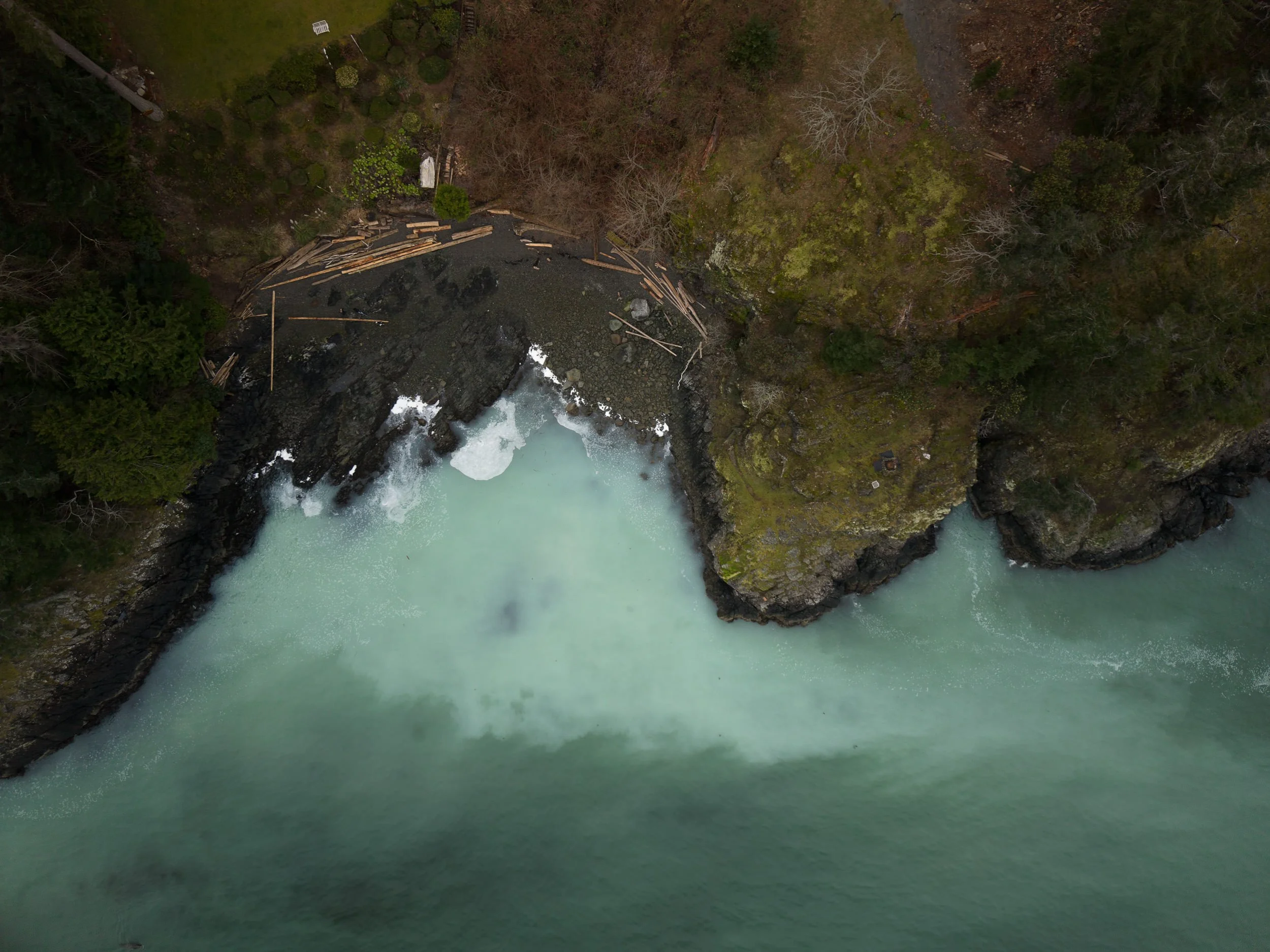
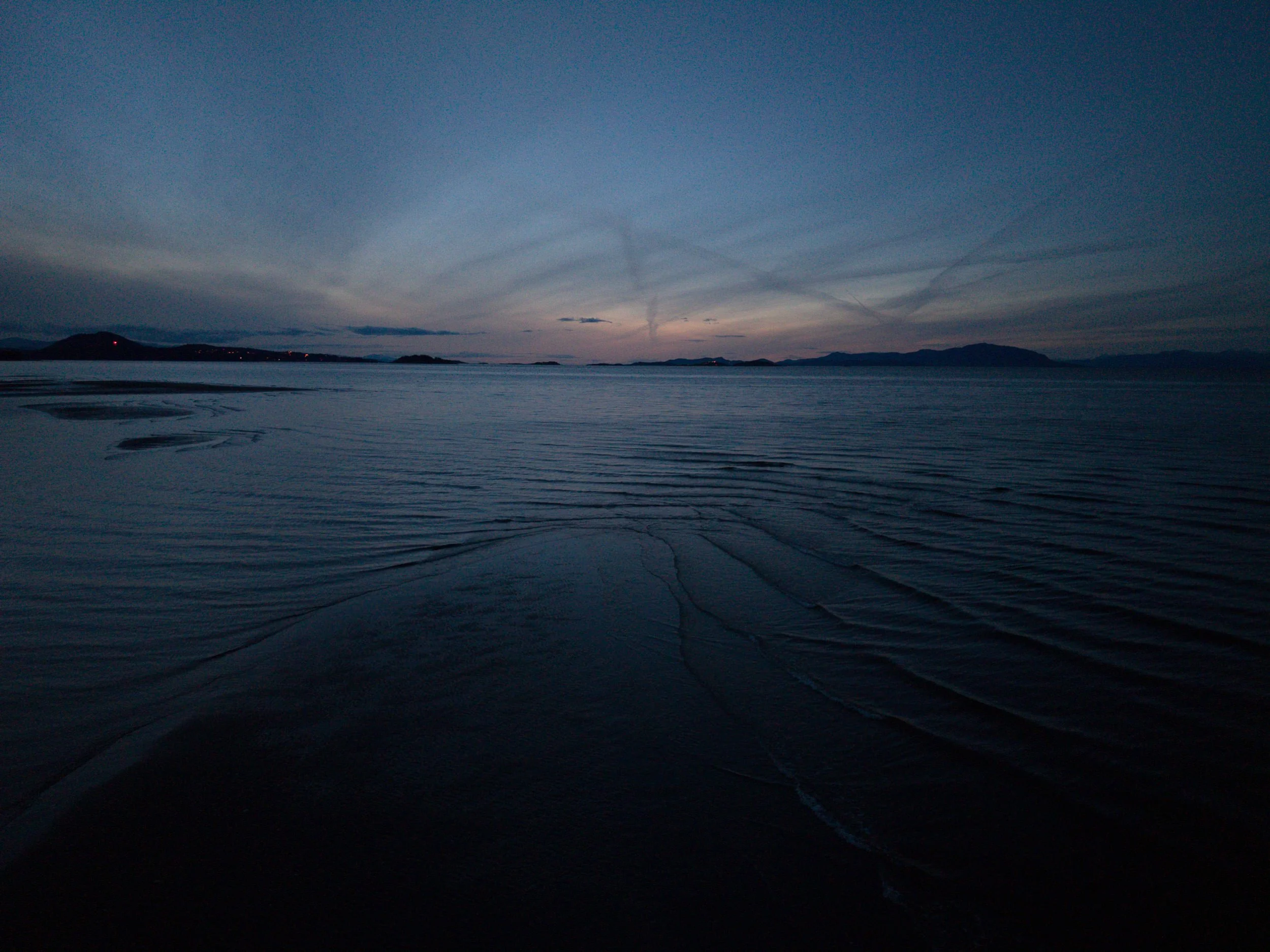
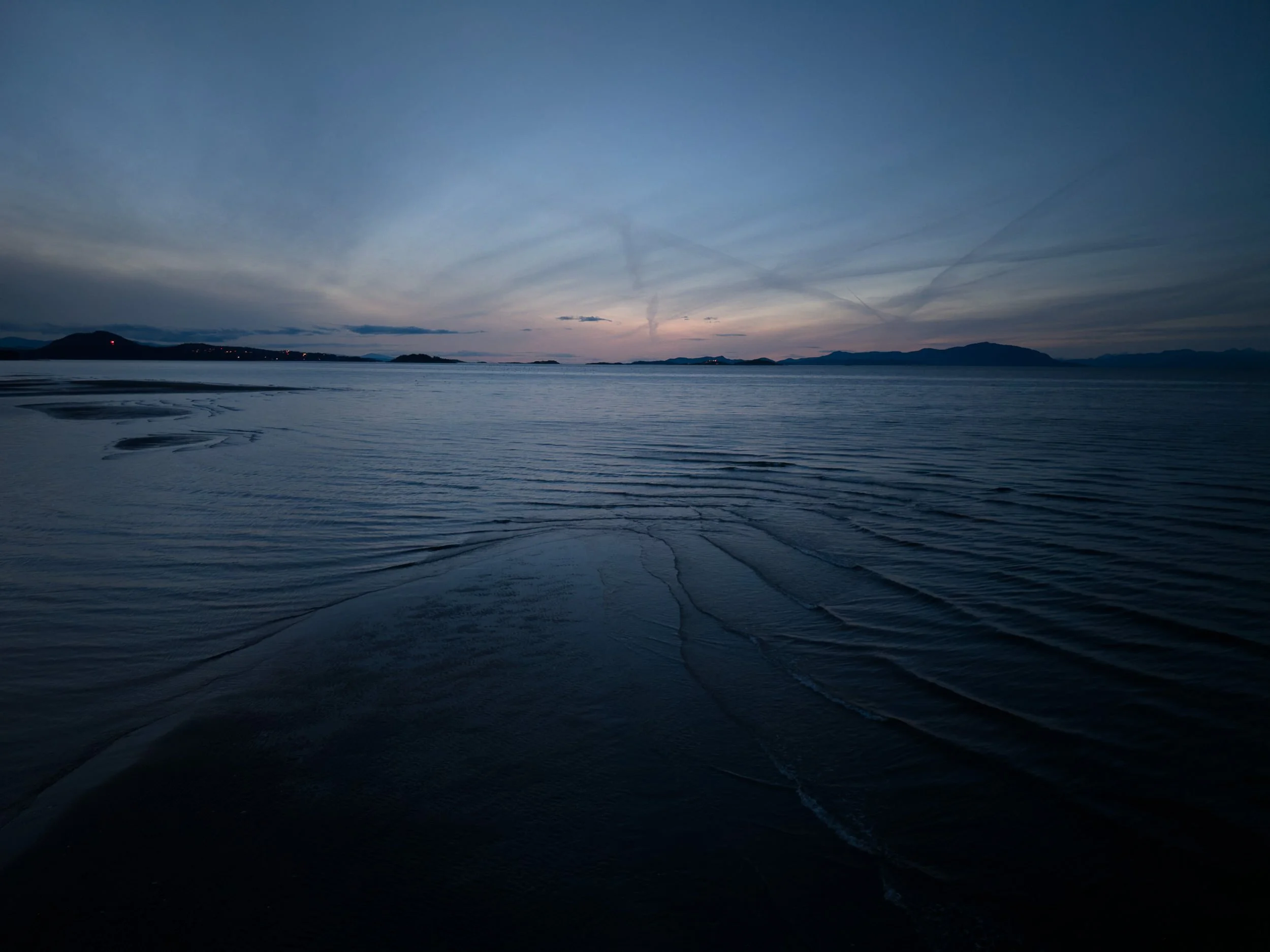
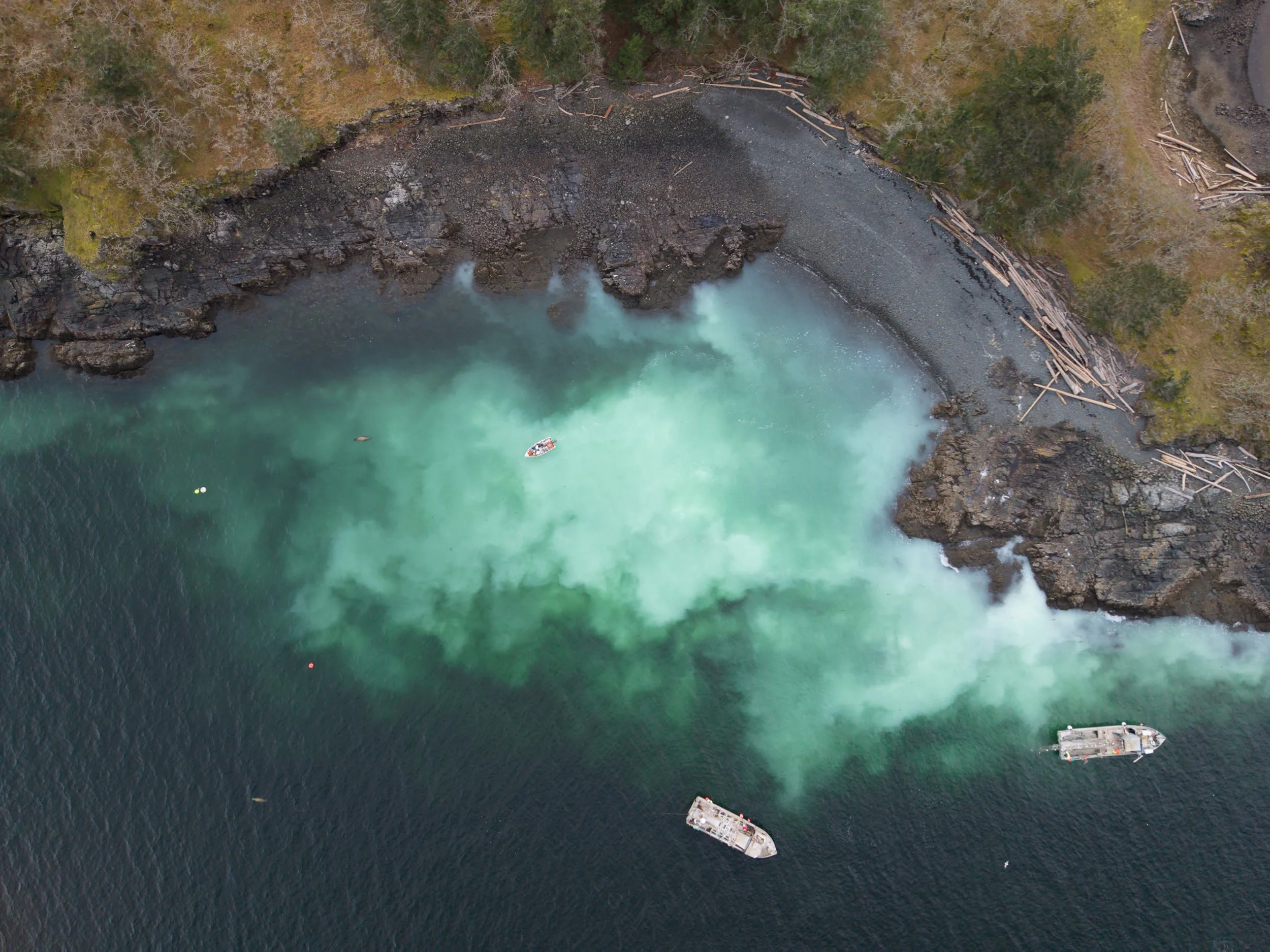
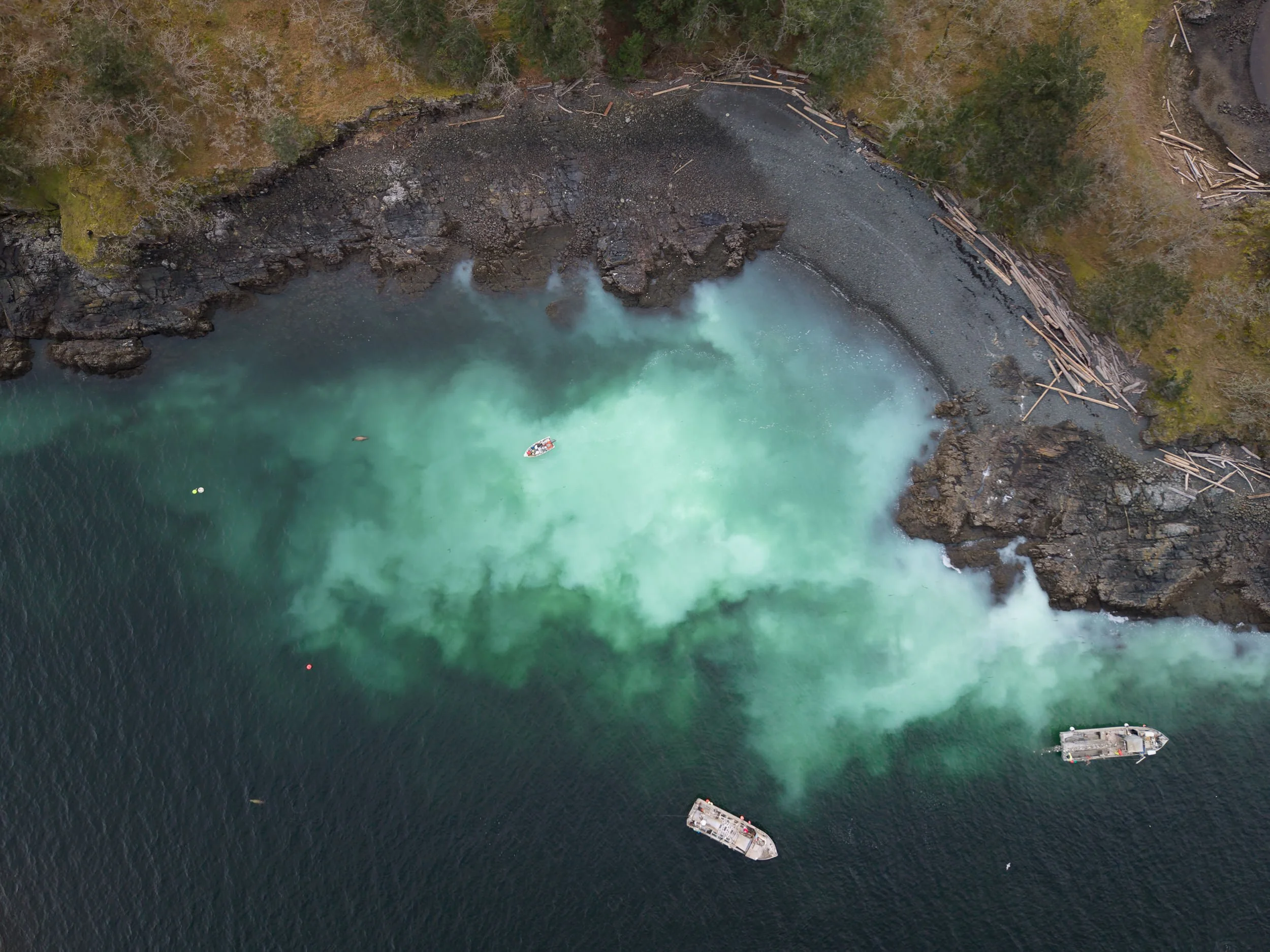
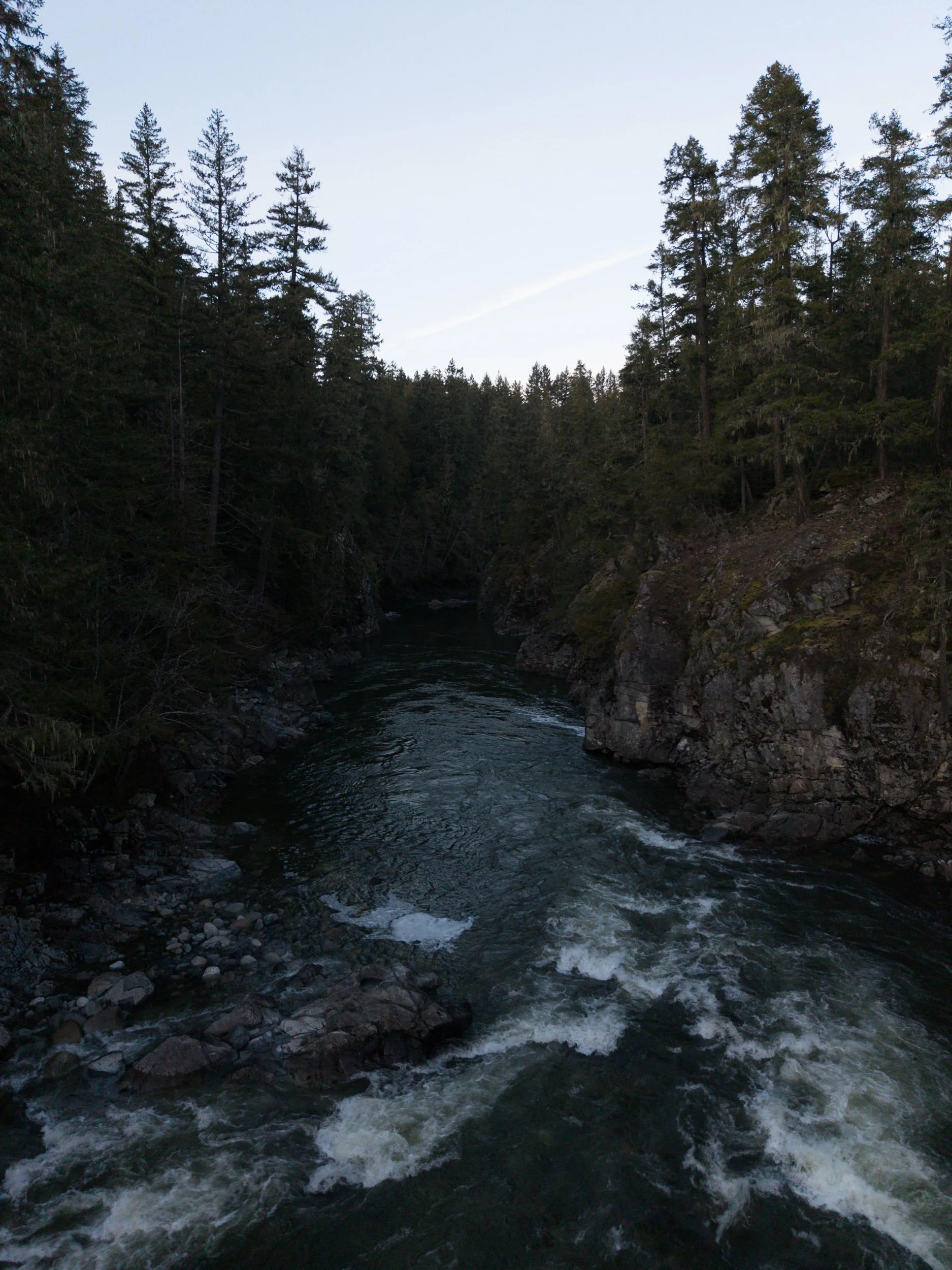
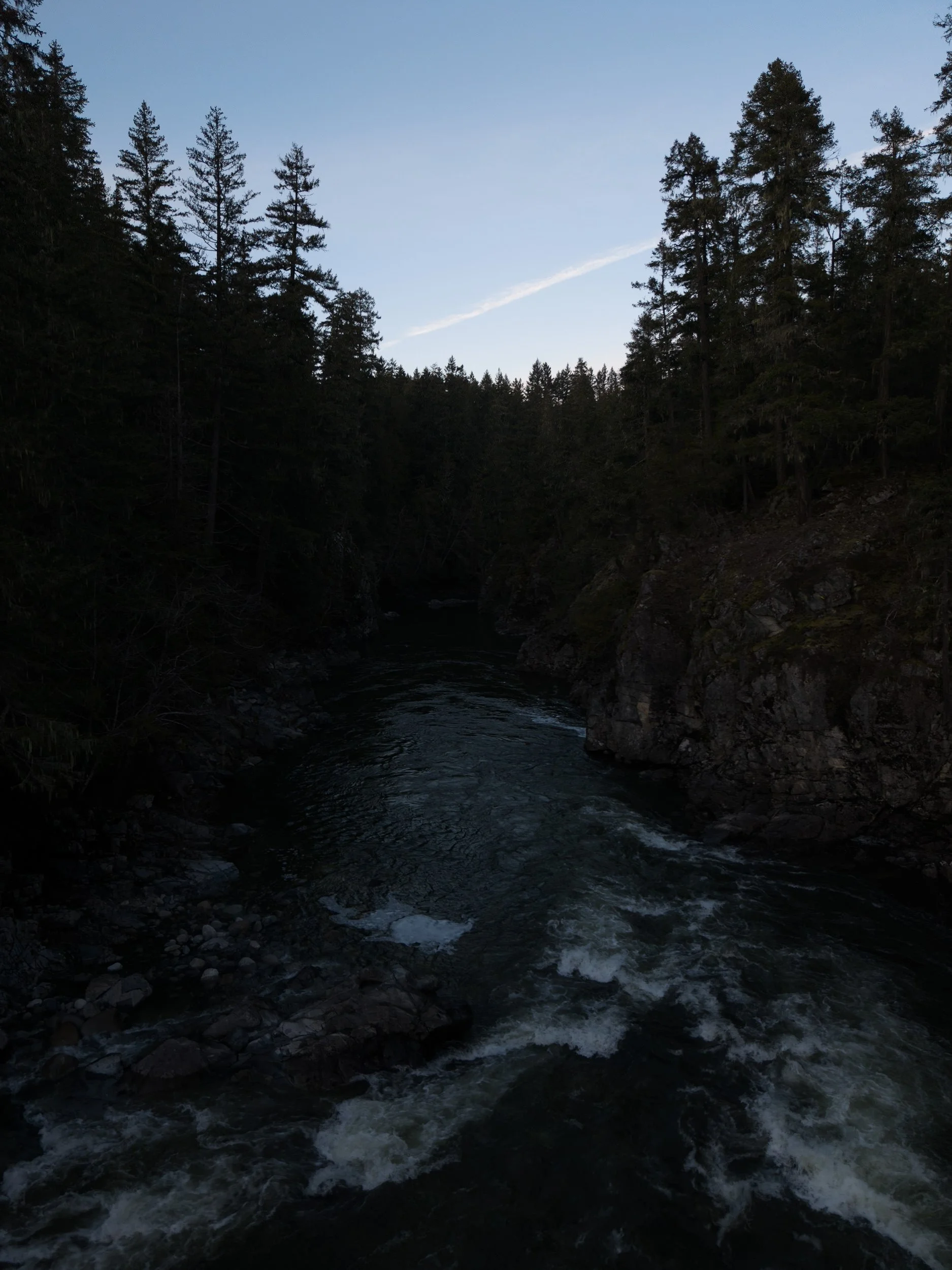
I also use PureRAW on almost every image captured with my drone, a DJI Mini 5 Pro. While drone sensors are getting bigger and better almost every year, they are still fairly small. Details and sharpness are the first things to fall short when increasing the ISO, especially in the corners. And just as with my regular camera work, I use different presets depending on the ISO range. One thing I have noticed is that some Mini 5 Pro files come back a little darker after processing. Not unusable. Just slightly darker than the original raw, with sometimes a small shift in the overall tone. I could not find one perfectly clear official explanation for that behaviour. But from what I found, it likely comes down to a mix of raw interpretation (demosaic), lens corrections, and vignetting compensation. I also came across a discussion suggesting that Mini 5 Pro files may already lean a little darker or warmer to begin with, which means several small factors may be stacking together.
So if you have seen that in your own drone DNG files, you are imagining it. In my case, it is not usually a deal breaker, but there are moments when I end up having to increase the exposure by over a stop in Lightroom just to get back closer to the feel of the original raw. It is simply something to watch for.
What I still want DxO to improve
Even though I clearly like the software, there are still a few things I would like DxO to improve on. The first is iPhone DNG support. I am not talking about Apple ProRAW, which is already processed and belongs in a different category. I mean Bayer DNG files from third-party apps such as Moment. In my view, those files should be usable inside DxO. If they have the ability to work with drone dng, why not iPhone?
The second is the ability to access PureRaw processing presets within the Lightroom integration. While they do allow you to process directly with the last settings used without opening the DxO PureRaw window, this would be much more useful with presets, especially when different ISO groups need different treatment. And I would still like the option to process unsupported raw files without optical corrections. If I am using a manual lens, I understand that the profile is missing. That is fine. But I should still be able to decide whether I want just the denoising engine.
Looking further ahead, I would also like to see stronger integration with Lightroom’s cloud-based ecosystem. If Adobe keeps nudging photographers away from Lightroom Classic over time, third-party tools will need to follow that shift. Because once a company starts calling a product Classic, it usually means it’s on the road to retirement.
Is PureRAW 6 worth the upgrade?
If you already own PureRAW 5, the answer depends less on the feature list than on how often you actually use the software. If it is something you open only from time to time for the occasional difficult file, then version 5 is still more than capable, and you can probably stay where you are for now and see what comes up with version 7 in 2027. But if PureRAW is already part of your regular workflow, then yes, I do think version 6 is worth it. XD3 matters. The speed improvements matter. Compressed DNG could matter. That is why I would not call PureRAW 6 a groundbreaking upgrade. I would call it a practical one. And in real photographic work, practical upgrades are often the ones that last.
Final thoughts
DxO PureRAW has been part of my workflow for years. Since moving to Vancouver Island and spending more time on wildlife work, I have relied on it even more. And with aerial photography now part of the mix, it has become one of the tools I keep coming back to.
At the time of writing, the plugin costs $139, or $89 as an upgrade from version 4 or 5, and there is also a 14-day free trial of the full version (no watermark, no limited files). That makes it easy enough to test in your own workflow, which is probably the only test that really matters.
What matters more in your own workflow: the cleanest possible starting file, or the simplest path from raw capture to finished image?